
Create Clothing Product Photos for Shopify
Turn existing garment photos into ghost mannequin product images with Ghost Mannequin Tool. Check each result, download a JPG and upload it to your Shopify product.
Standard · 2 credits per generation
2K source for finer fabric and print detail. Check each result against your garment.
Download: 2048 px on the short edge.
- Photo
- Settings
- Result
Works best
- One garment, fully in frame
- Straight-on, evenly lit
- Plain background
Avoid
- Cropped hems or sleeves
- Busy backgrounds or several garments
Next generation settings
Framing reference only. These settings apply to the next generation and do not edit the current result.
Output: 2048 × 2048 px · JPG
Sign in with email or Google. New accounts can try 1 Standard image (2 trial credits). Watermarked preview; unlock this already-generated image for $0.50 via PayPal. Trial credits are granted after email verification; Google sign-in counts as verified.
Uses 2 credits per image. A failed image gives the credit back.
- Private storage: your photos are not publicly displayed
- Failed images give the credit back
- 2048 px downloads in 1:1, 4:5 or 3:4
- Packs from $2.99 · no subscription
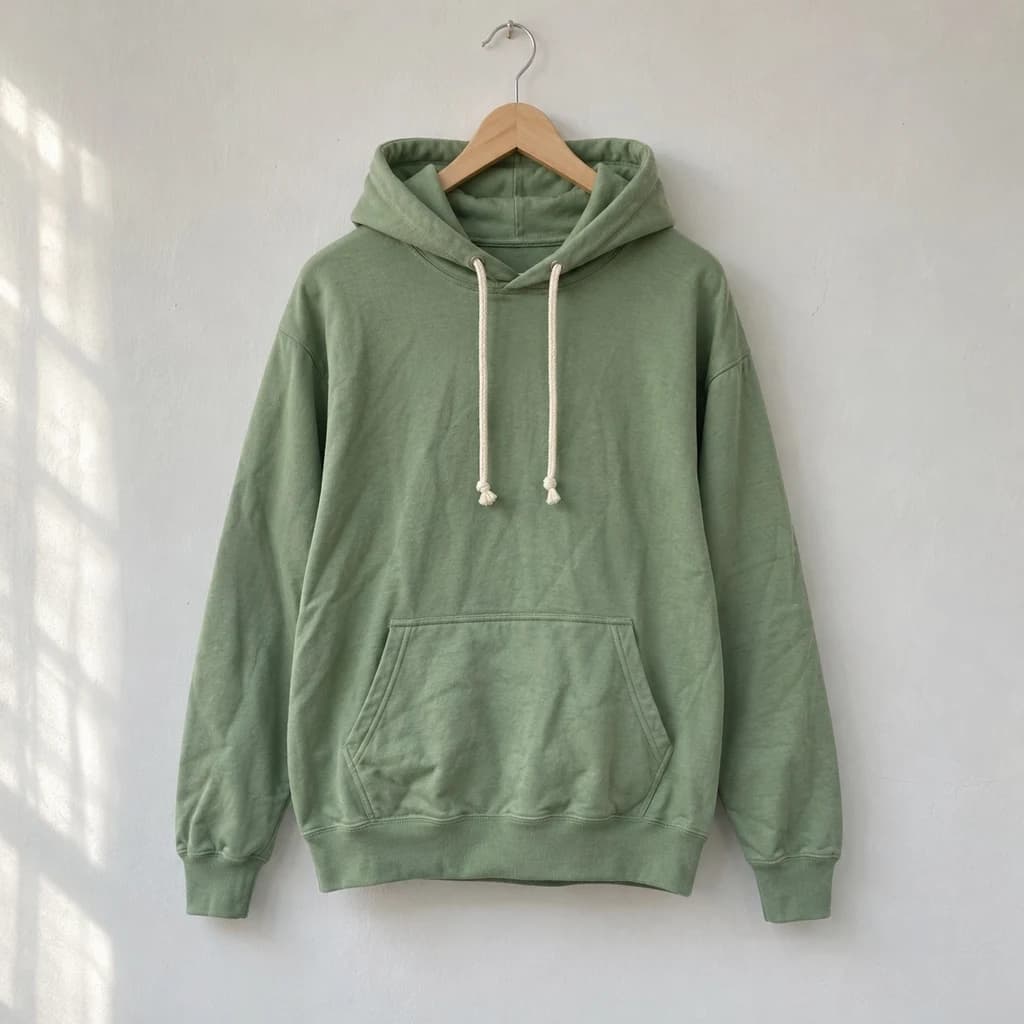 Hanger
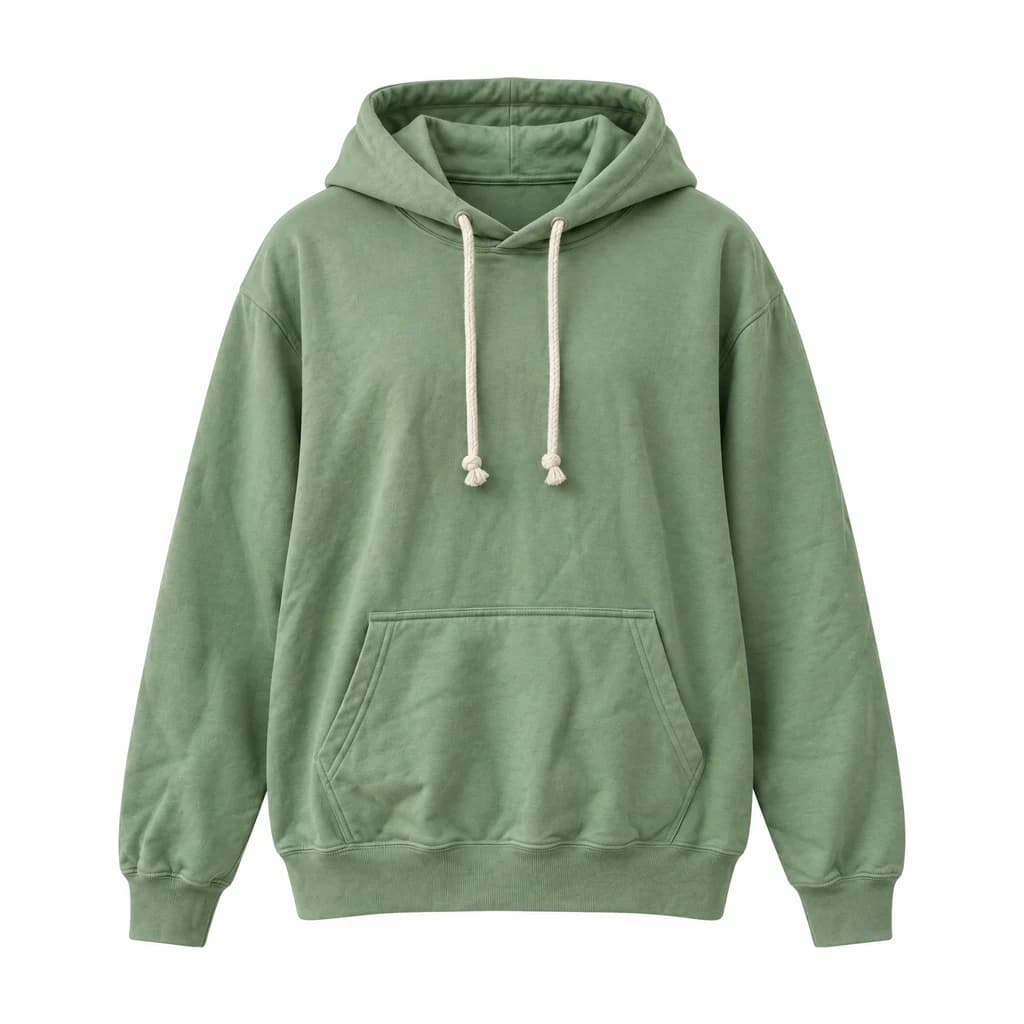 Ghost mannequin
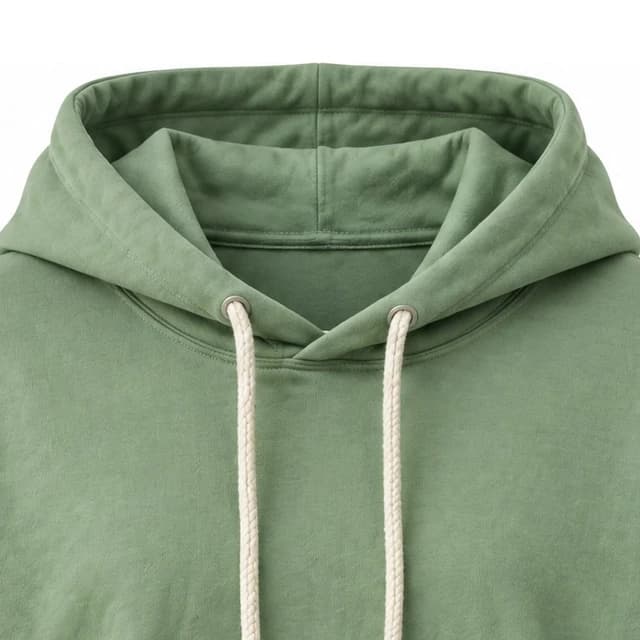
Hood opening and drawstrings
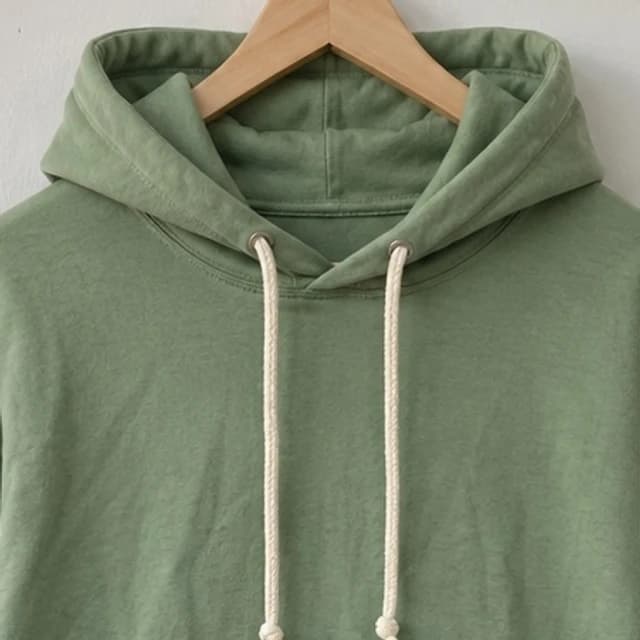
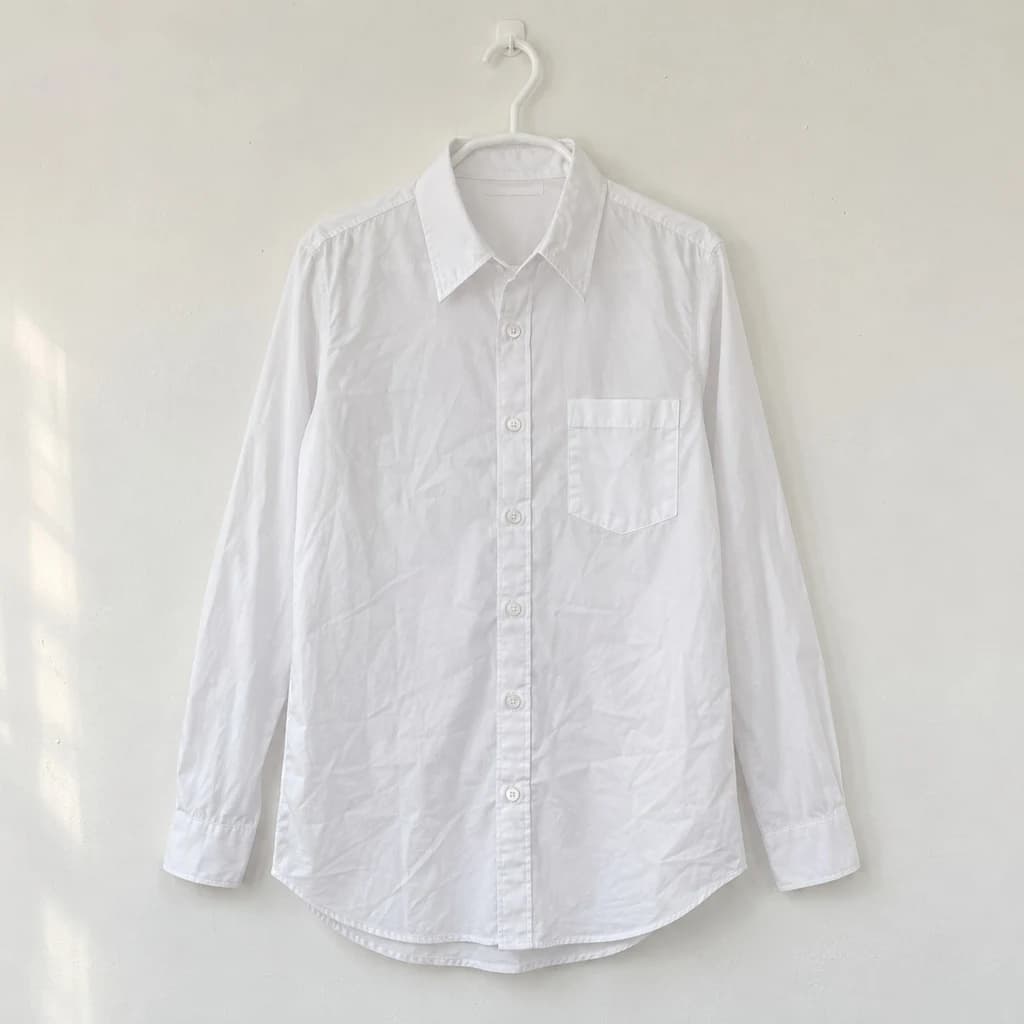 Hanger
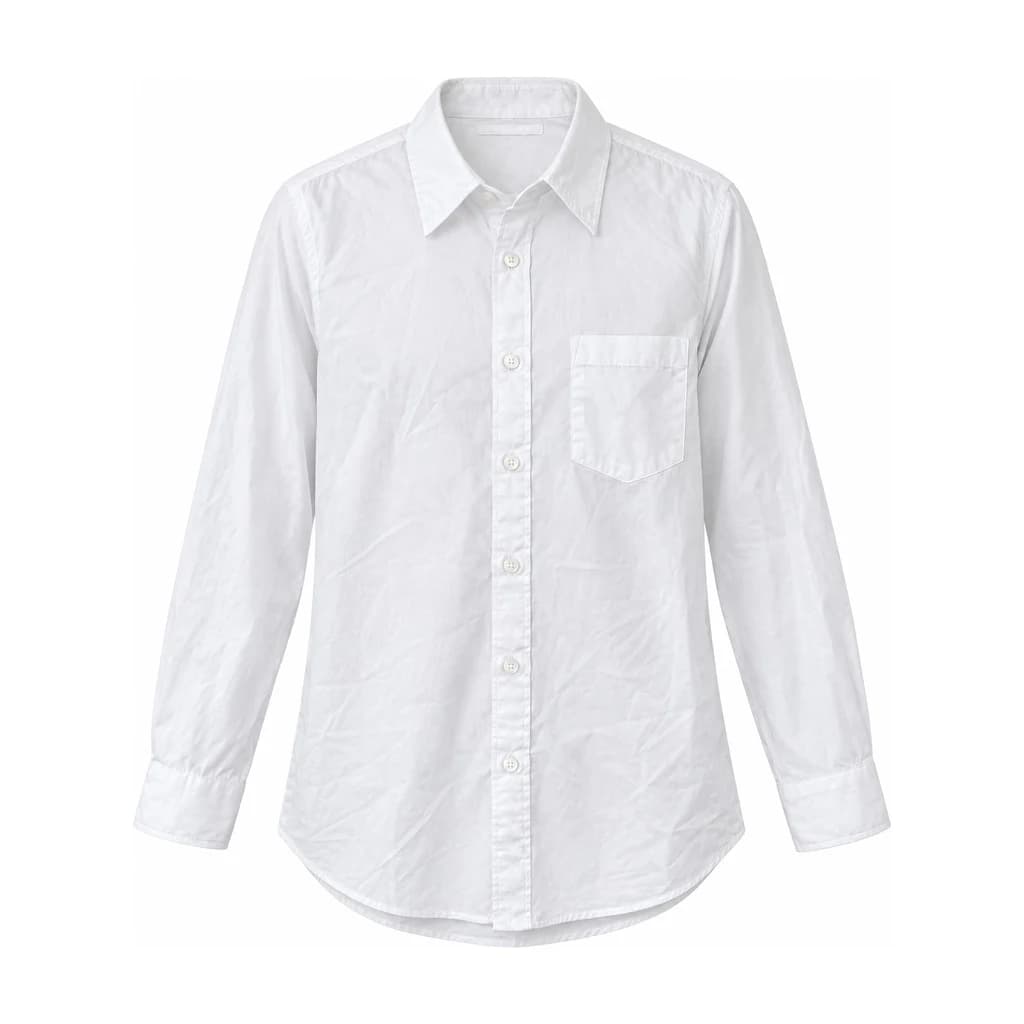 Ghost mannequin
Collar and blank neck patch
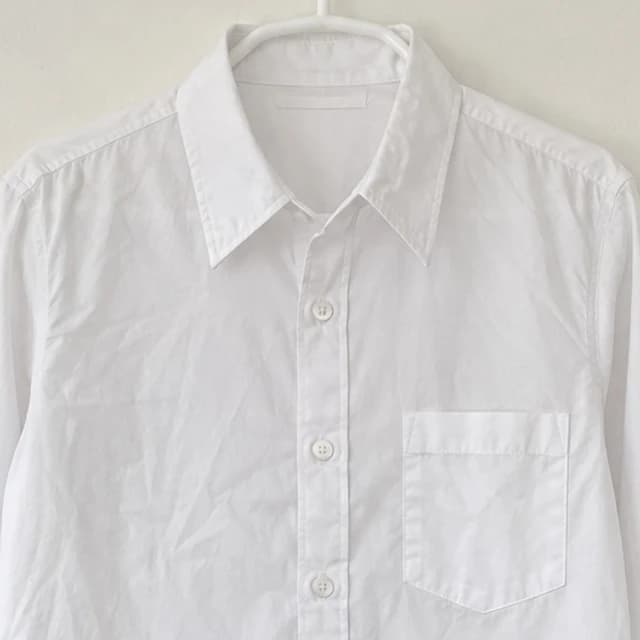
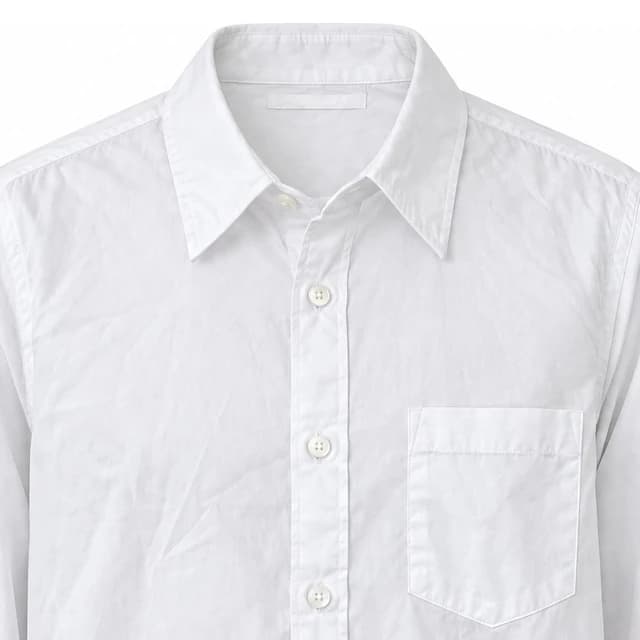
Compare the original photo and result, including the neckline, print and fabric.
Have a similar clothing photo?
Try your own garment. One clear main photo is enough to start; extra reference photos are optional.
How can I make Shopify clothing photos without a new shoot?
Use an existing mannequin, hanger, flat lay or worn photo to generate a ghost mannequin image, then check the garment details and upload the downloaded JPG to Shopify. Ghost Mannequin Tool runs in your browser; it does not connect to or publish directly to your Shopify store.
- Existing photos in
- Start with one garment, fully in frame, in even light. Optional collar and another-angle photos are available in single-item processing.
- Product images out
- Choose a white or light gray background and consistent framing. Square output is 2048 × 2048 px; portrait ratios are available too.
- You control publication
- Check the generated image against the actual garment, then upload the JPG to your product in Shopify. There is no automatic catalog sync.
Standard: 2 credits per generation. Sign in with email or Google. After email verification, new accounts can try 1 Standard generation with a watermarked preview. Failed generations return the charge.
Check the evidence before you use it
Compare the original photos with the generated results. Open each image to inspect the garment details before preparing your Shopify listing.
Before using an image in your store, compare the source, generated output and actual garment. Inspect color, print, logos, seams, buttons, pockets and neck labels. Add your original and detail photos where they help shoppers see the actual item.
From an existing photo to your Shopify product
- 01
Upload one clear garment photo
Sign in with email or Google, choose the photo type and upload a clear hanger, mannequin or flat lay photo. New accounts can try 1 Standard image with a watermarked preview; trial credits require a verified account email.
- 02
Choose a consistent presentation
Select your background, view, aspect ratio and padding. Use the same settings across related products. A generated view is an approximation, not a verified photograph of an unseen side.
- 03
Inspect before downloading
Compare the result with the original and actual garment at full size. Hidden necklines, text, logos, texture and silhouette can change. Keep only an image that represents the item you sell.
- 04
Add the JPG to Shopify
In Shopify admin, open Products, choose your product and upload the downloaded JPG in Media. Arrange your product images and save. Shopify’s official instructions are linked below.
Choose the workflow that matches your product
Ghost mannequin
Use the tool above for a worn shape with no visible body or mannequin. The shape and any unseen fabric are generated; it is not evidence of fit or sizing.
Flat lay
Choose the separate flat lay tool for a top-down presentation. It accepts mannequin, hanger or worn photos and uses the same credit balance.
Precise garment documentation
Keep original photographs and close-ups when a buyer needs to verify a print, label, seam, color or flaw. A generated image can change details and cannot replace a photograph documenting the actual item.
Credits and catalog work
Standard uses 2 credits per generation. Failed generations return their credits, and another version uses another 2 credits. See the pricing page for current one-time image unlocks and credit packs.
Batch processing accepts up to 10 photos and charges per image, with credits returned for each failed image. Use single-item processing when you need supplementary reference photos. Test a few representative products before processing your catalog.
Shopify clothing photo questions
Is this a Shopify app or automatic catalog integration?
No. Ghost Mannequin Tool is a separate browser-based tool. Download your checked JPG and upload it to Shopify yourself; it does not read, sync or publish your catalog.
Can I use flat lay and hanger photos I already have?
Yes. The ghost mannequin tool accepts flat lay, hanger and mannequin photos. Use a clear photograph of one garment and check generated details against the actual product.
Are the downloads 3D models?
No. They are JPG product images with a 2048 px short edge. They are not 3D files, an interactive model or a measurement of how the garment fits.
Does it guarantee that logos and labels stay accurate?
No. The AI is instructed to preserve garment details, but print, lettering, colors and shape can change. Compare each result with the original and actual garment before publishing.
Do I need an account?
Yes. Sign in with email or Google. Trial credits require a verified account email. New accounts can try 1 Standard image with a watermarked preview; a purchase is required to download it without a watermark.