
Remove the Mannequin From Your Clothing Photo
Upload a photo of a garment on a mannequin or dress form. The AI removes the mannequin, its neck, arms and stand, fills in the inside of the neck, and gives you a clean product image on a white, light gray or transparent background.
- Photo
- Settings
- Result
Works best
- One garment, fully in frame
- Straight-on, evenly lit
- Plain background
Avoid
- Cropped hems or sleeves
- Busy backgrounds or several garments
Output: 2048 × 2048 px · JPG
Uses 1 credit per image. A failed image gives the credit back.
- Private: only you can see your photos
- Failed images give the credit back
- 2048 px downloads, ready for Shopify, Etsy and Amazon
- Pay once, no subscription
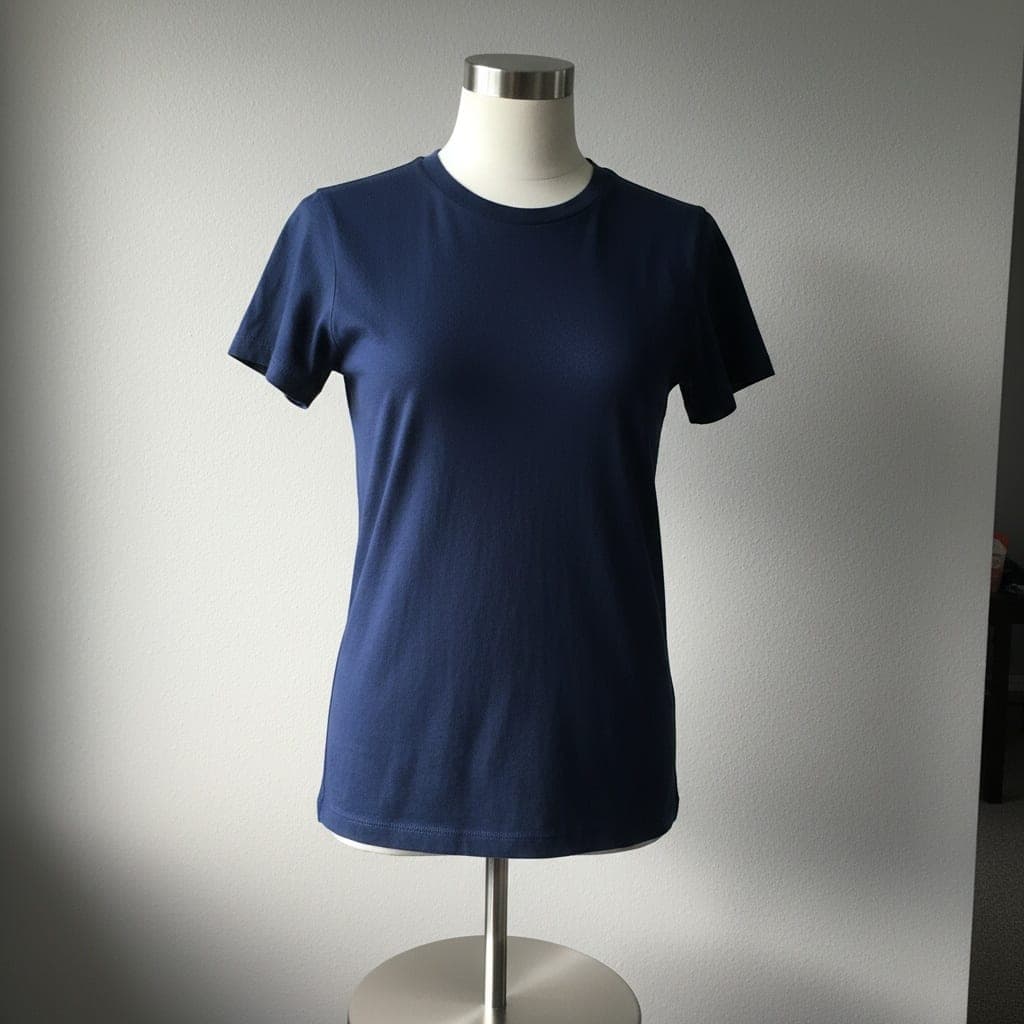 Mannequin
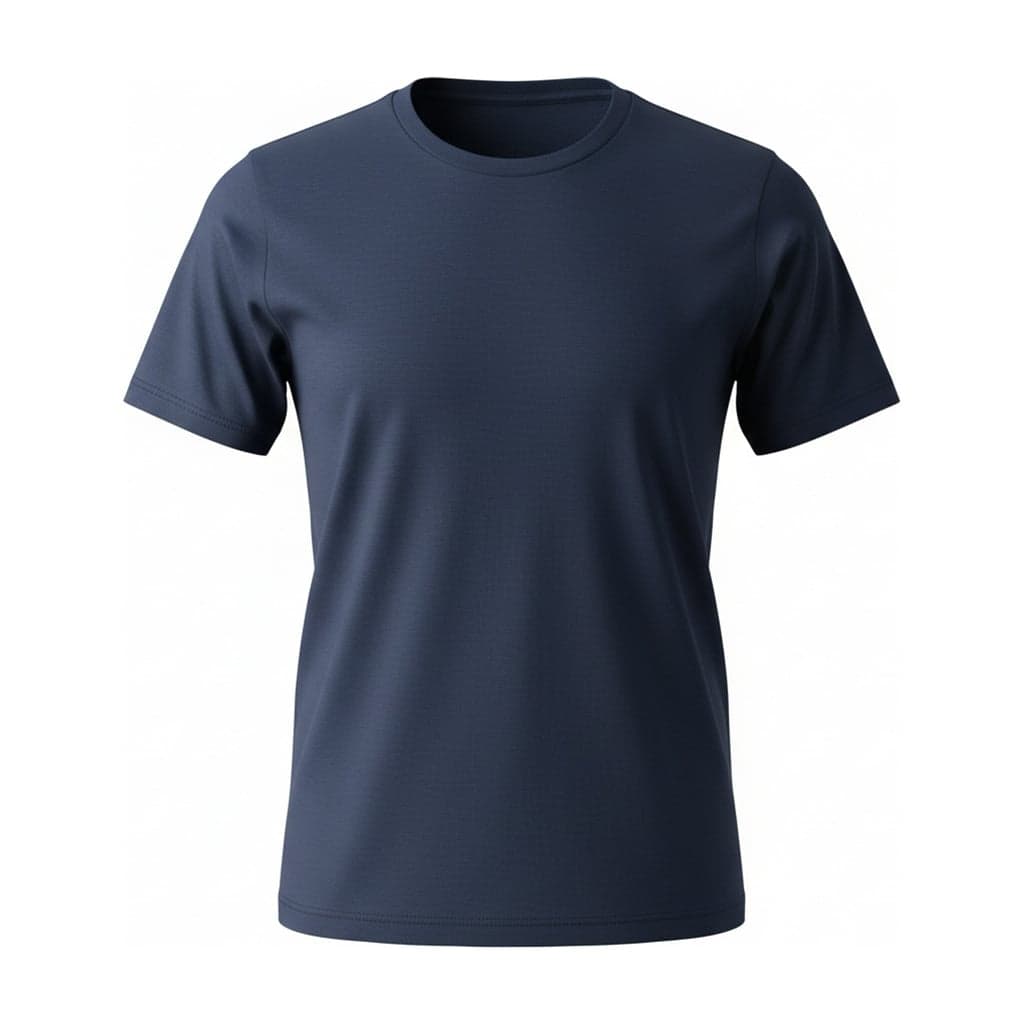 Ghost mannequin
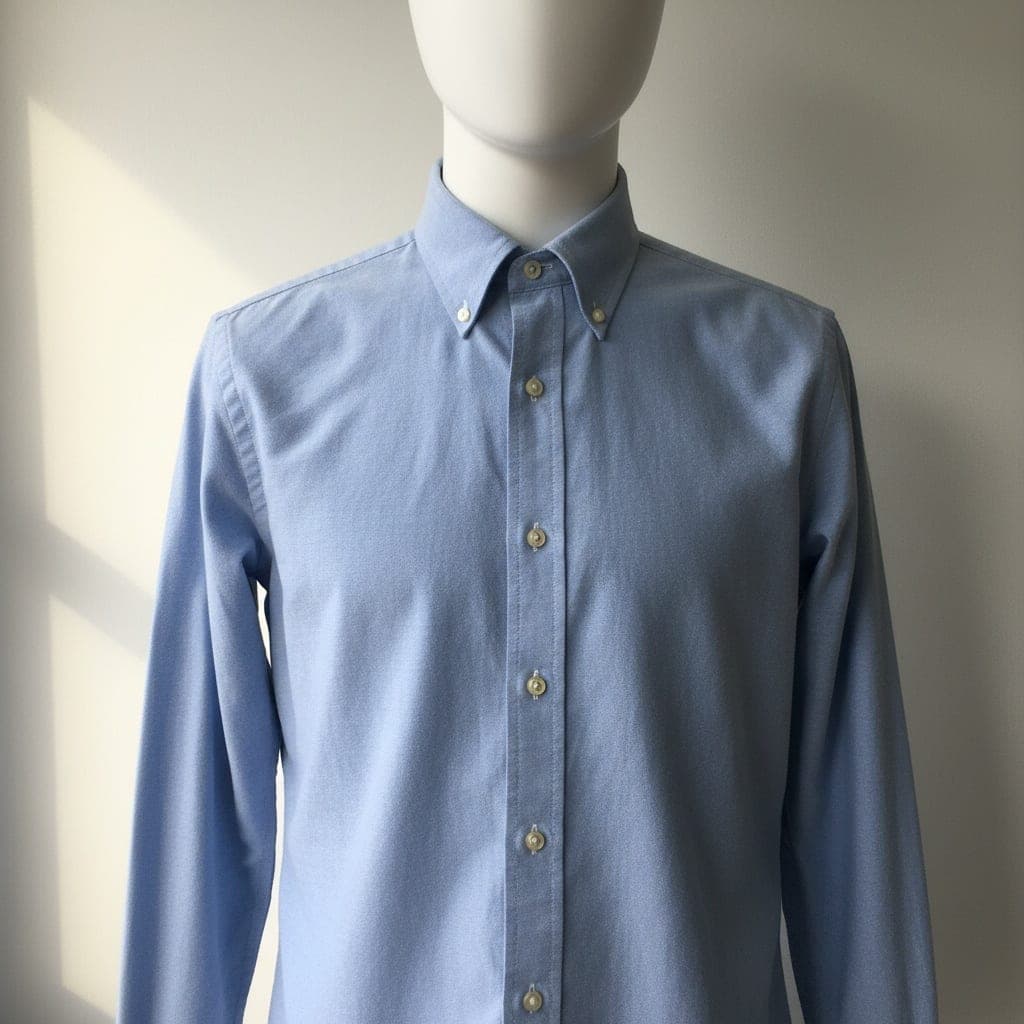 Mannequin
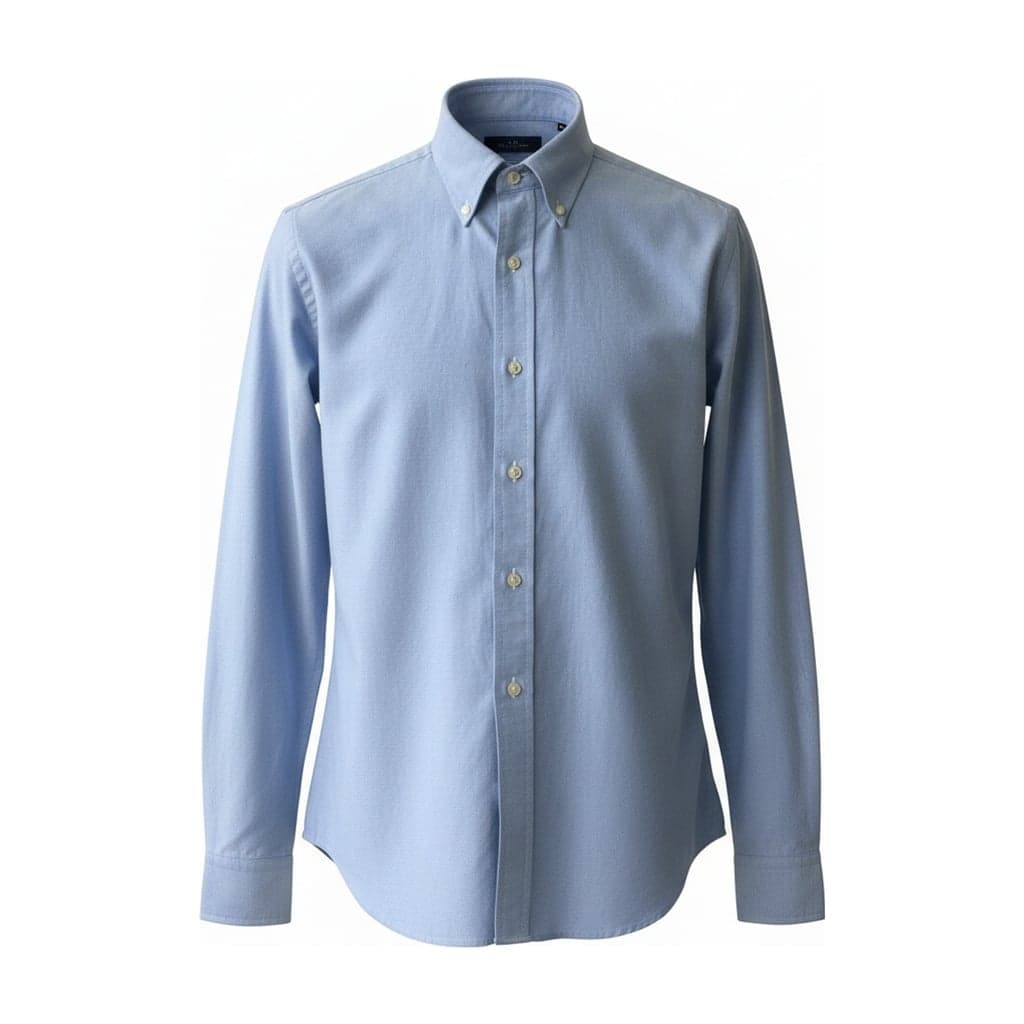 Ghost mannequin
Why a Background Remover Isn't Enough
Most background removers keep everything in the foreground, and the mannequin is in the foreground. You get the garment cut out, but the mannequin's neck still sticks out of the collar, or there is an empty hole where it used to be.
Removing a mannequin properly means two jobs: taking out every part of the form, and drawing what would be behind it: the inside of the back neck, the lining of a hood, the inner collar of a shirt. That second part is what editors spend the most time on when they build a ghost mannequin image by hand, and it's what this tool does for you.
What Happens to Your Photo
- 01
The mannequin goes
The torso, neck, arms and stand are removed, including the parts showing through armholes and under the hem.
- 02
The neck is filled in
The inner back of the neck is drawn in so the garment has depth, like it's worn by an invisible body. Back views skip this, because you wouldn't see it from behind.
- 03
The frame is set
The garment is centered on your chosen background, with the aspect ratio and padding you pick, and exported at 2048 px on the short edge.
Mannequins That Work Well, and Ones That Don't
Works well
White, light gray or clear torsos and dress forms, shot straight on in even light, with the whole garment in frame from collar to hem.
Works, with care
Mannequins with arms or a head. They're removed too, but sleeves that were pulled over arms can come out a little stiff. Check the sleeves before you publish.
Avoid
Black or printed mannequins that blend into dark garments, heavy shadows behind the form, and photos that crop the hem or a sleeve.
What It Keeps
The garment's color, print, logo, text, stitching and shape are kept as they are in your photo. Only the mannequin and the background change. The inner neck is AI-drawn and may not match your garment's real lining, so compare the result with the product before it goes live.
Remove Mannequin FAQ
Does it remove the mannequin's stand and pole too?
Yes. The stand, pole and base are removed along with the torso. If the stand is hidden behind a long dress, nothing needs removing there, and the hem is kept as it is.
Does it work with a dress form or tailor's dummy?
Yes. Choose Mannequin under "What does your photo show?". Dress forms with a fabric cover work well as long as the cover doesn't match the garment's color.
Can I keep the mannequin and only change the background?
No. This tool always removes the mannequin. If you want the mannequin in the picture, a plain background remover is the better fit.
Can I make several garments look the same?
Yes. The tool remembers your background, aspect ratio and padding, so every photo you upload afterwards comes out with the same framing.
What if the result still shows part of the mannequin?
Use Try again for a new version. If a finished image isn't usable, contact us with it and we'll take a look.