
AI Clothes Color Changer for Product Photos
Show every colorway without reshooting. Start from a ghost mannequin or flat lay result, or a product photo on a light background, pick up to six colors and get one image per color, with the background and framing unchanged.
1. Your garment photo
A white or light, plain background works best: colors are calibrated only on those.
Photo on a busy background? Make a ghost mannequin image first, then change its color.
2. Choose up to 6 colors
0 of 6 selectedA failed image gives the credit back.
AI color change: the result depends on the light in your photo and on your screen. Compare each image with the real product before you list it.
- Private: only you can see your photos
- Failed images give the credit back
- 2048 px downloads in 1:1, 4:5 or 3:4
- One-time packs available
Clothing Color Change Examples
Each pair shows the source image and the same garment in a new color, made with the live tool. The original photos in these examples are AI-generated sample garments, not customer photos. Anything that differs from the original is noted under the image.
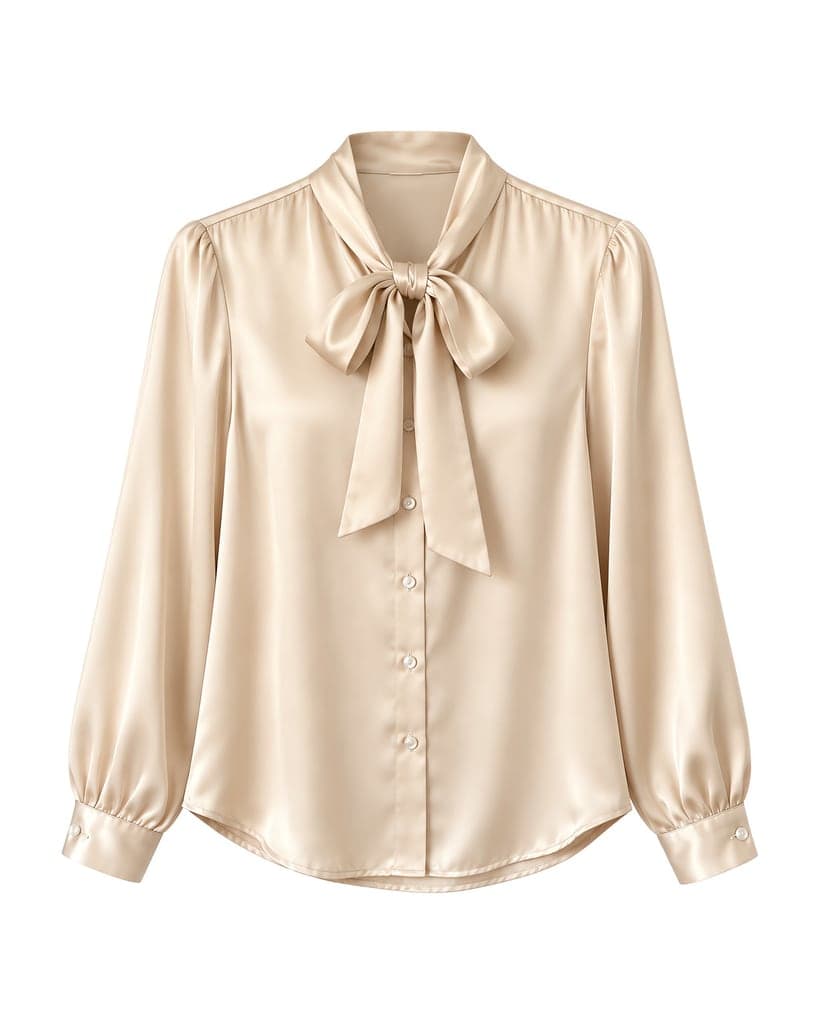 Source
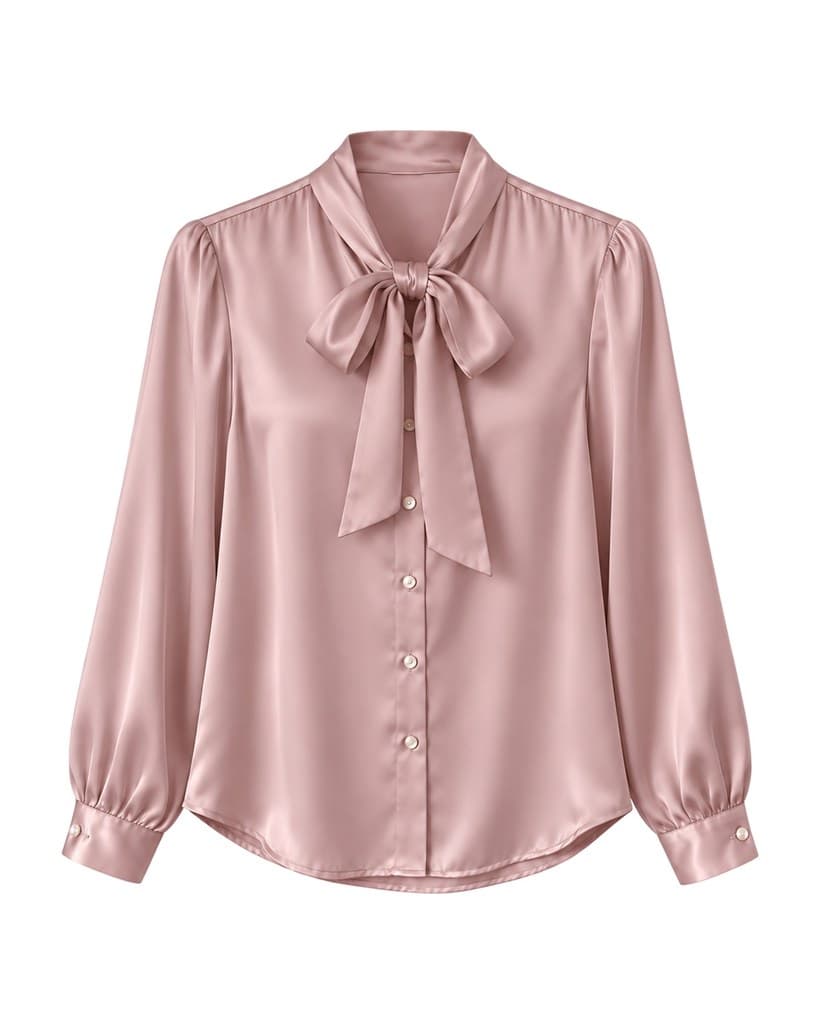 #C8A0A0
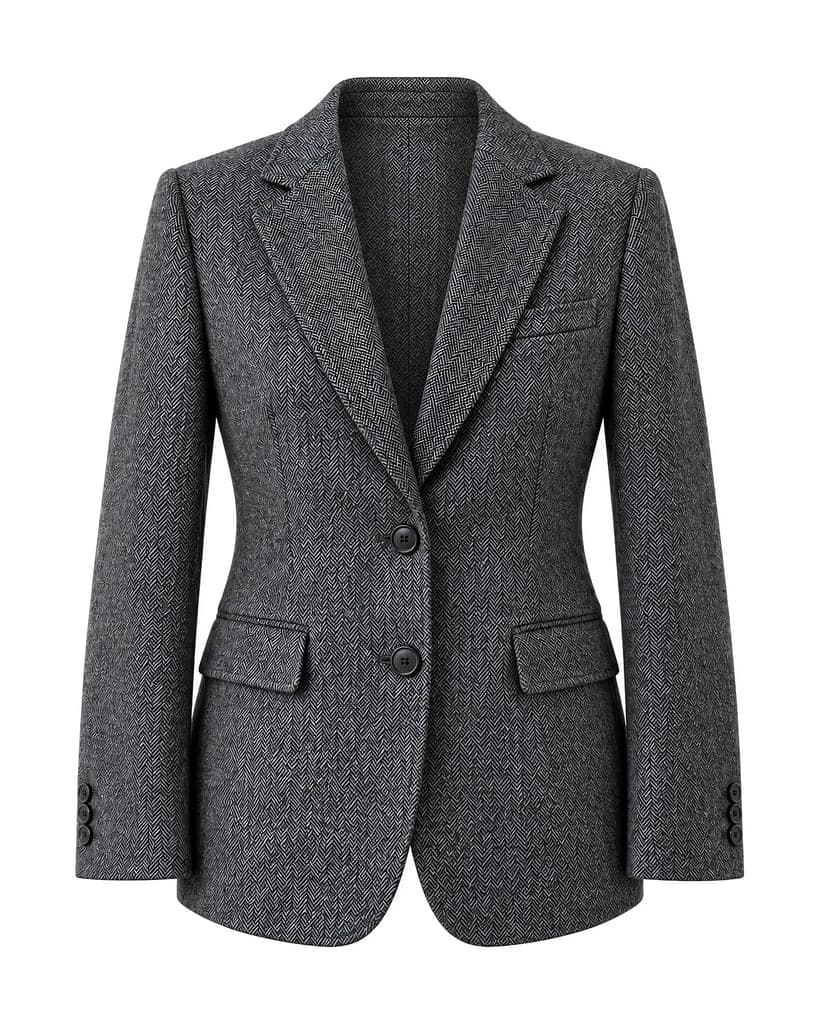 Source
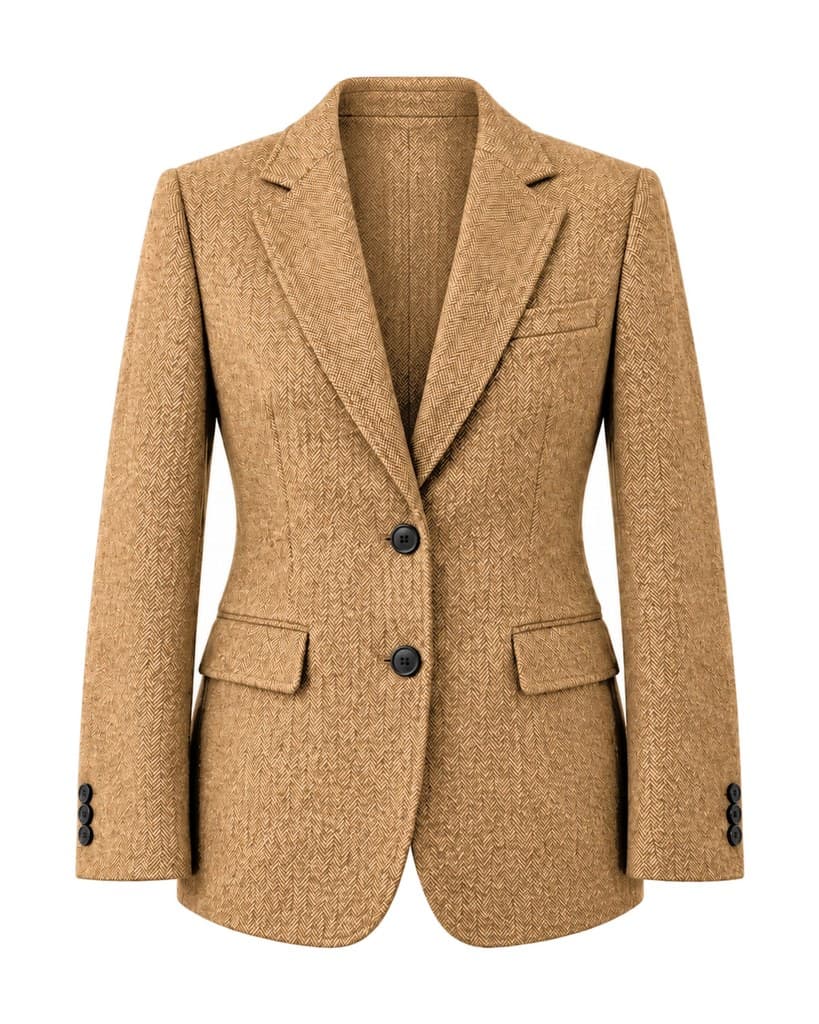 #B5885A
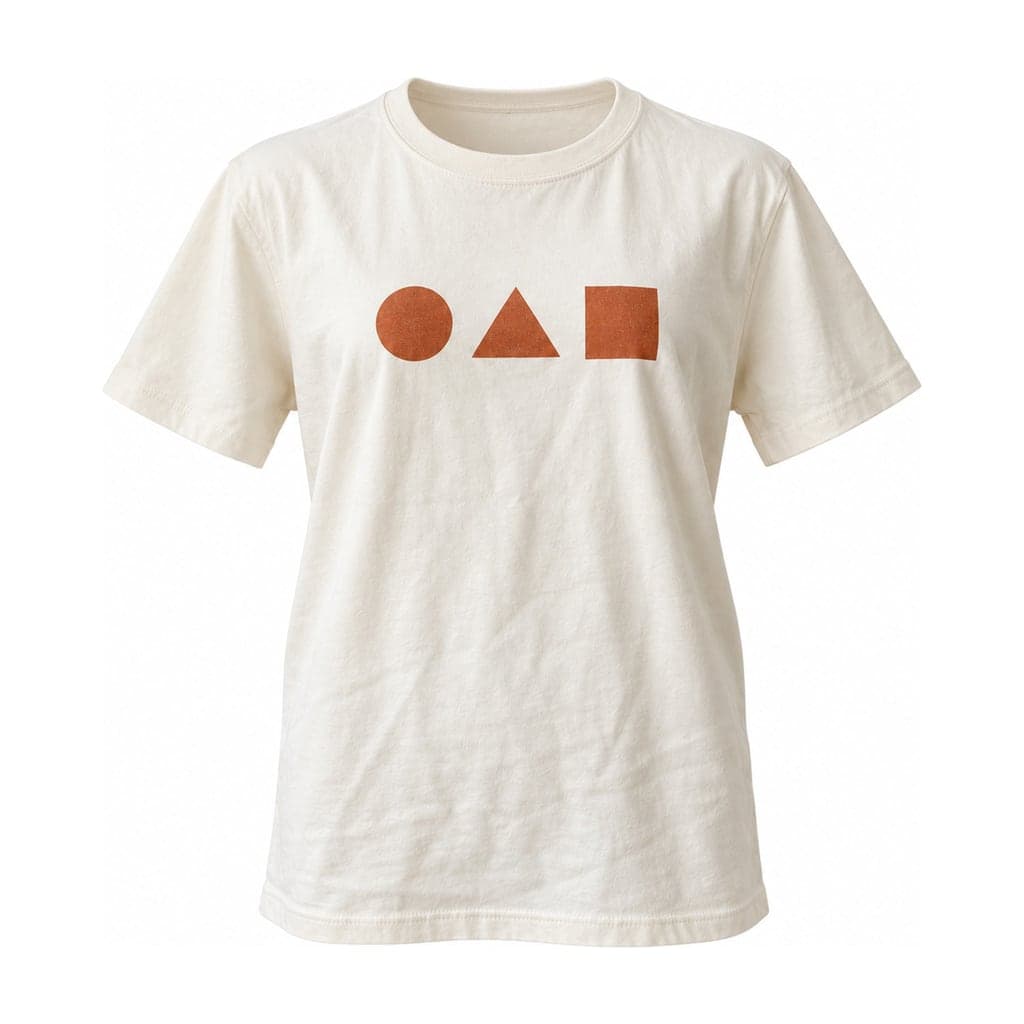 Source
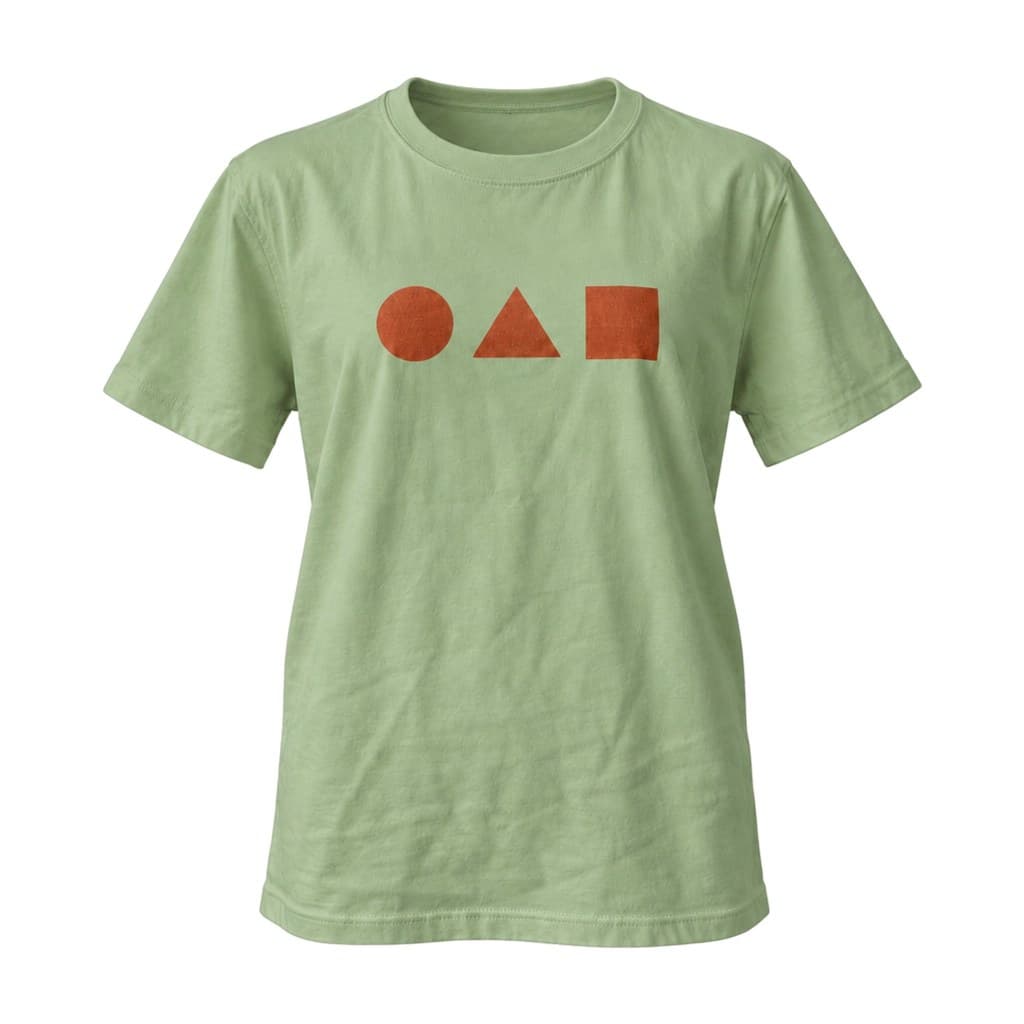 #9CAF88
How to Change the Color of Clothes in a Photo
- 01
Start from a clean image
Use a ghost mannequin or flat lay result (the Change color button under it), or upload a product photo on a white or light background.
- 02
Choose up to six colors
Upload a swatch photo for the closest match, type a hex code or pick common colors. Each color becomes its own image.
- 03
Check and download
Compare each colorway with the real product, then download 2048 px images that match the source framing.
When a Color Change Works Best
The tool changes the main fabric color and keeps the rest of the image. These cases give the most reliable results.
Solid-color garments
One main fabric color, such as a plain shirt, knit, blazer or dress. Prints, logos, buttons and zips can stay in their original colors.
Light, plain backgrounds
Ghost mannequin and flat lay results on white or light gray are ideal: the garment is easy to separate from the background, so the color can be calibrated.
Colorways you really stock
Use it to show colors you sell. A swatch photo of the real fabric, taken in daylight, gives the closest match.
Change the Color of a Dress, T-Shirt or Shirt
Dresses: solid-color dresses recolor well, including knits and satin. On a printed dress, keep the print in its original colors, or turn that option off so the print changes with the fabric. Long dresses keep their folds and shading, so darker colors still show the drape.
T-shirts and sweatshirts: plain cotton tops are the easiest garments to recolor. Graphic prints and logos stay as they are by default, which is what you want when the same print is sold on several shirt colors.
Shirts and blouses: buttons, stitching and collars keep their original colors. Changing a shirt to white or a very pale color on a white background is the exception: the garment and background are too close to calibrate, so start from a light gray background instead.
What Changes and What Stays
The AI redraws the image in the new color and is told to keep the outline, folds, texture, stitching and hardware. After that, the tool measures the fabric color and moves it to your target, leaving buttons and prints alone. On a white or light gray source the background is set back to the exact original color.
It is still a generated image. Texture, small folds and fine details can change slightly, as the notes under the examples show. Calibration runs only on light, plain backgrounds and on garments with one main color; on other images the color is the AI's own and is marked as not calibrated.
A screen never shows fabric color exactly, and your photo's light affects the result. Treat each colorway as a preview to compare with the real product.
Check Each Colorway Before You Publish
Buyers return items whose color differs from the listing. Before you use a recolored image, compare it with the garment.
Color in daylight
Hold the real fabric next to your screen in daylight. If the shade is off, upload a swatch photo of that fabric and try again.
Prints, logos and hardware
Check that prints, labels, buttons and zips have the colors your product really has in that colorway.
Texture and shape
Compare weave, knit and folds with the source image. Keep real close-up photos for fabric details buyers ask about.
Pricing
Each color is one image: 1 credit in basic mode, 2 in standard mode, the same as the other tools. Six colors in basic mode use 6 credits. A failed color returns its credit. Trial credits require email verification (Google sign-in counts). Credits are sold in one-time packs.
See pricingFAQ
How accurate is the new color?
On light, plain backgrounds the tool calibrates the fabric to your target color after the AI has drawn it. The closest match comes from a swatch photo of the real fabric. Your photo's light and your screen still affect what you see, so compare each image with the product before listing it.
Can I change the colour of clothes in a photo online?
Yes. Upload the photo or start from a ghost mannequin or flat lay result, pick up to six colours and download one image per colour. You need an account and credits; each colour uses the credits of one image.
Will prints, logos, buttons and zips change color?
Not by default: the option to keep them in their original colors is on. Turn it off if a print should change together with the fabric.
Can I change the color of a photo with a model or a busy background?
The tool is made for product images on light, plain backgrounds. For a mannequin, hanger or worn photo, make a ghost mannequin or flat lay image first, then change its color. Photos with people are not supported in this tool.
How many colors can I make at once?
Up to six per run. Each color is a separate image and uses the credits of one image.
What size are the downloads?
2048 px on the short edge, in the same ratio as the source image (1:1, 4:5 or 3:4), as JPG.
Who can see my photos?
Only you. Photos and results are stored privately and are shown to you through short-lived links; you can delete them in My images.