
AI Ghost Mannequin Generator
Upload a mannequin, hanger or flat lay photo of your garment. Ghost mannequin AI removes what's holding it, fills in the neck opening and gives you a clean product image on a white, light gray or transparent background.
- Photo
- Settings
- Result
Works best
- One garment, fully in frame
- Straight-on, evenly lit
- Plain background
Avoid
- Cropped hems or sleeves
- Busy backgrounds or several garments
Output: 2048 × 2048 px · JPG
Uses 1 credit per image. A failed image gives the credit back.
- Private: only you can see your photos
- Failed images give the credit back
- 2048 px downloads, ready for Shopify, Etsy and Amazon
- Pay once, no subscription
Ghost Mannequin Examples
From a Mannequin Photo
The most reliable input. Remove the mannequin from a clothing photo and the AI fills in the inner back of the neck, so a T-shirt, shirt or hoodie looks worn by an invisible form.
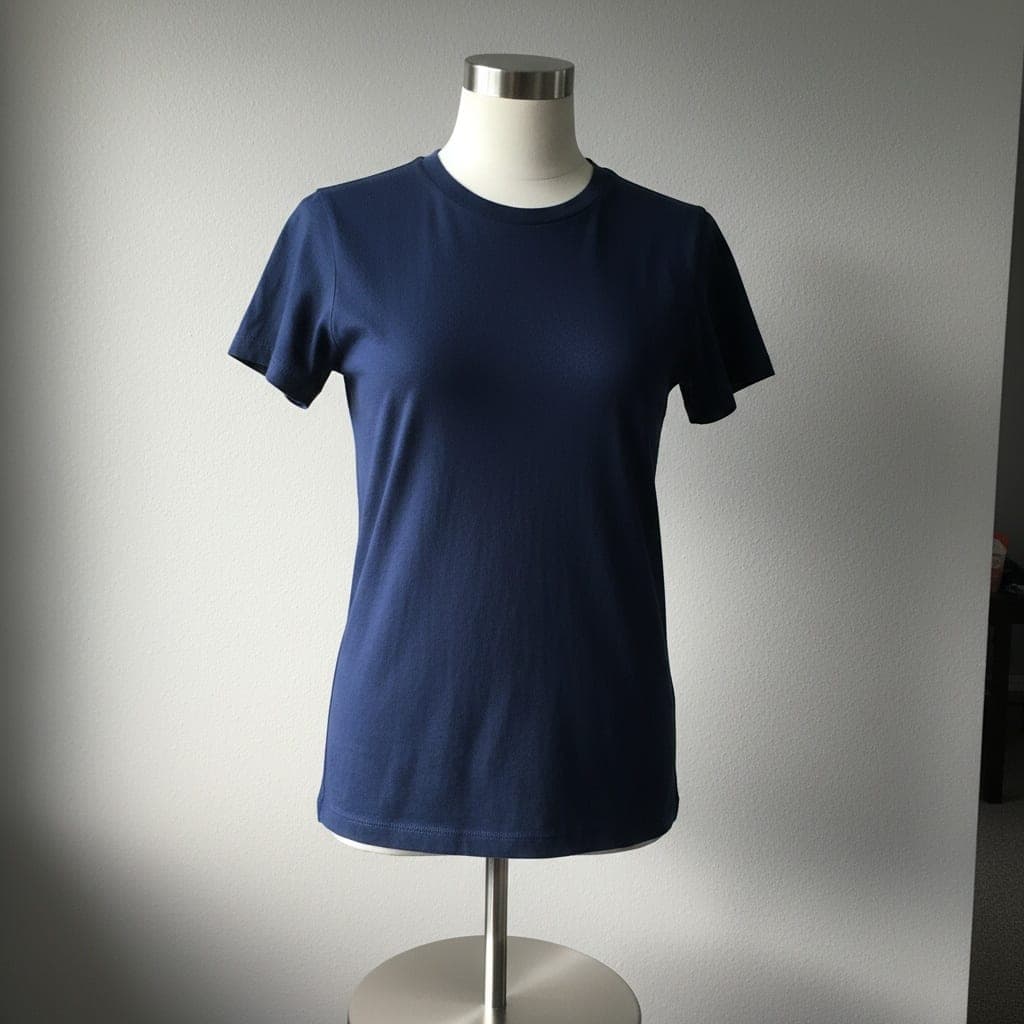 Mannequin
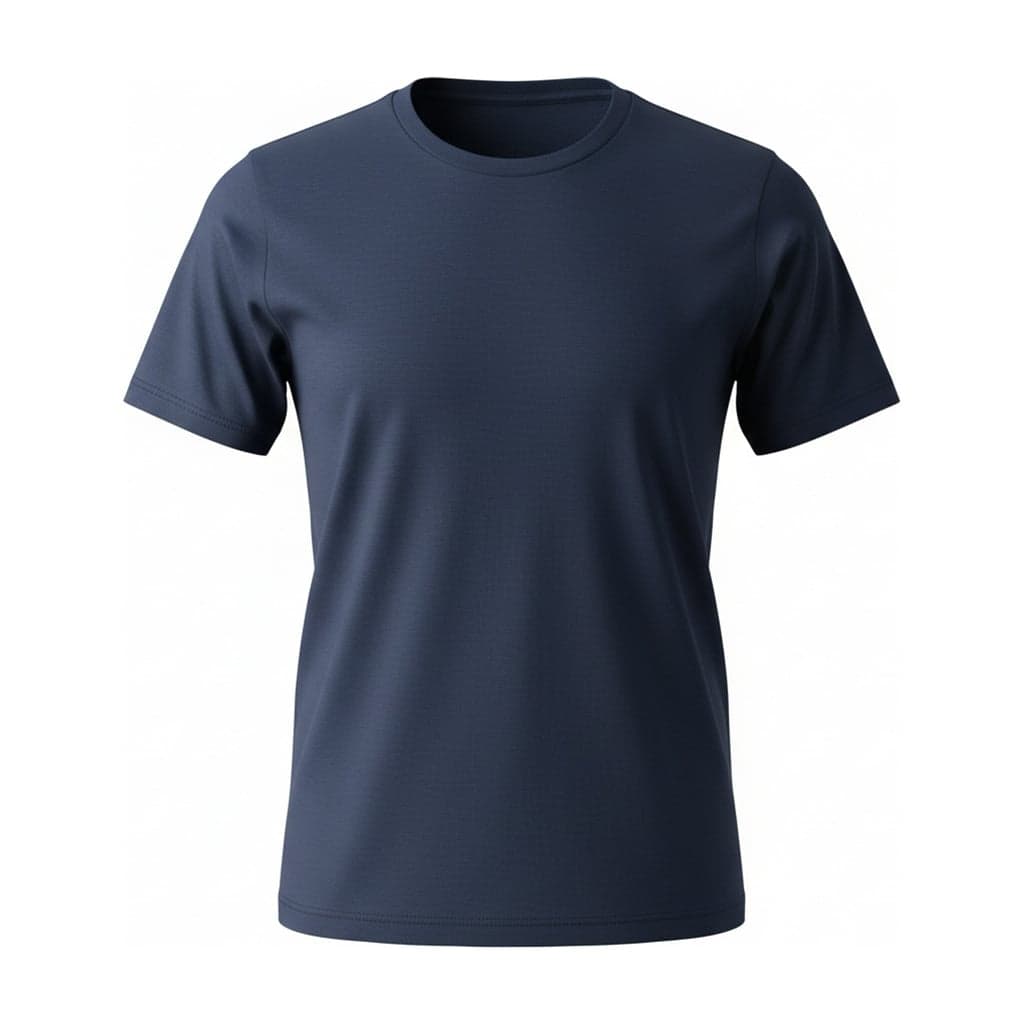 Ghost mannequin
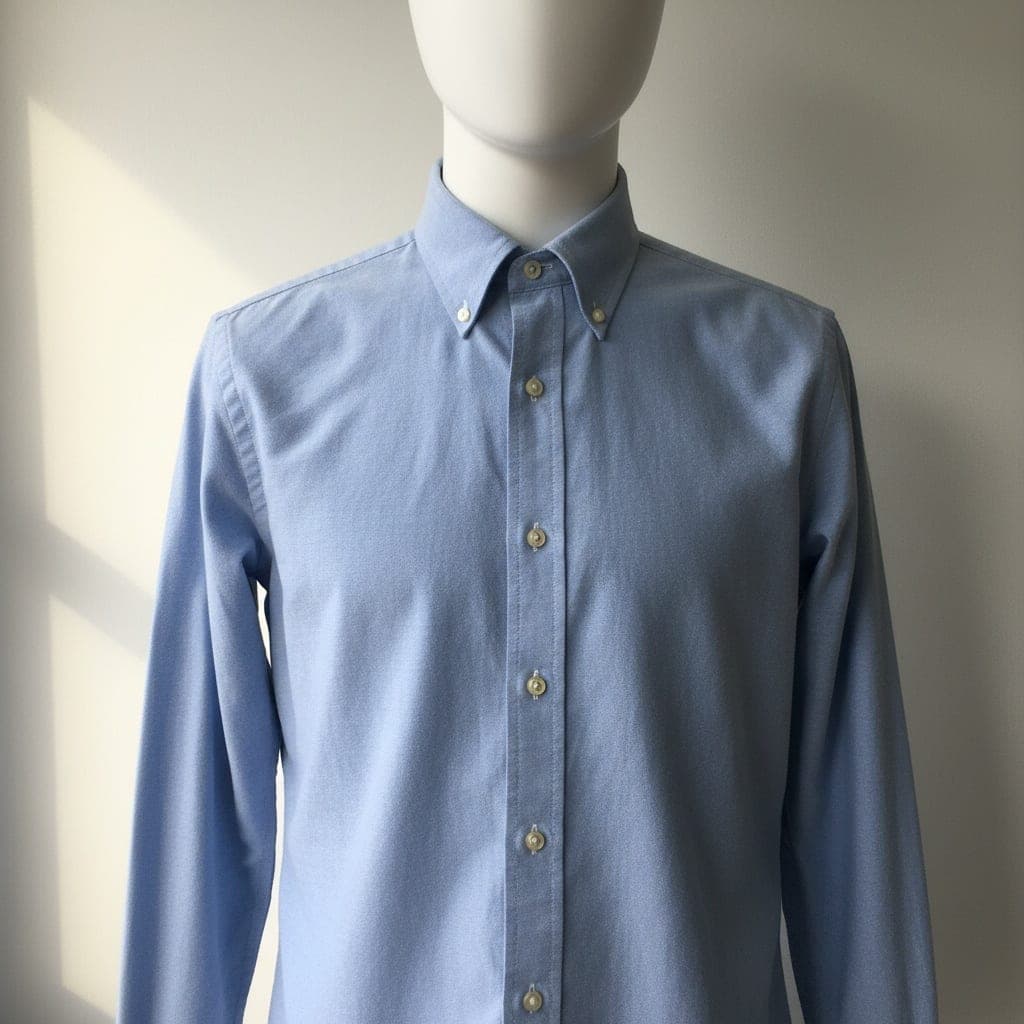 Mannequin
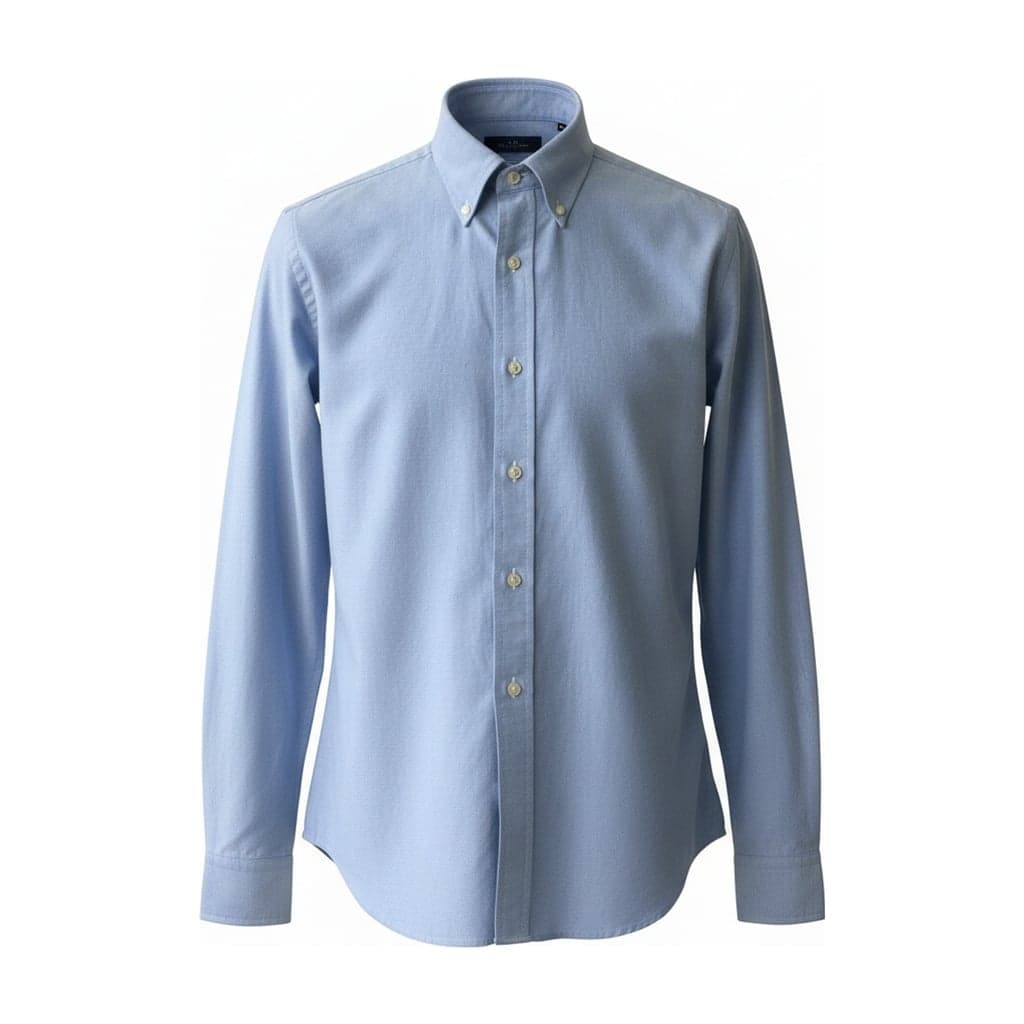 Ghost mannequin
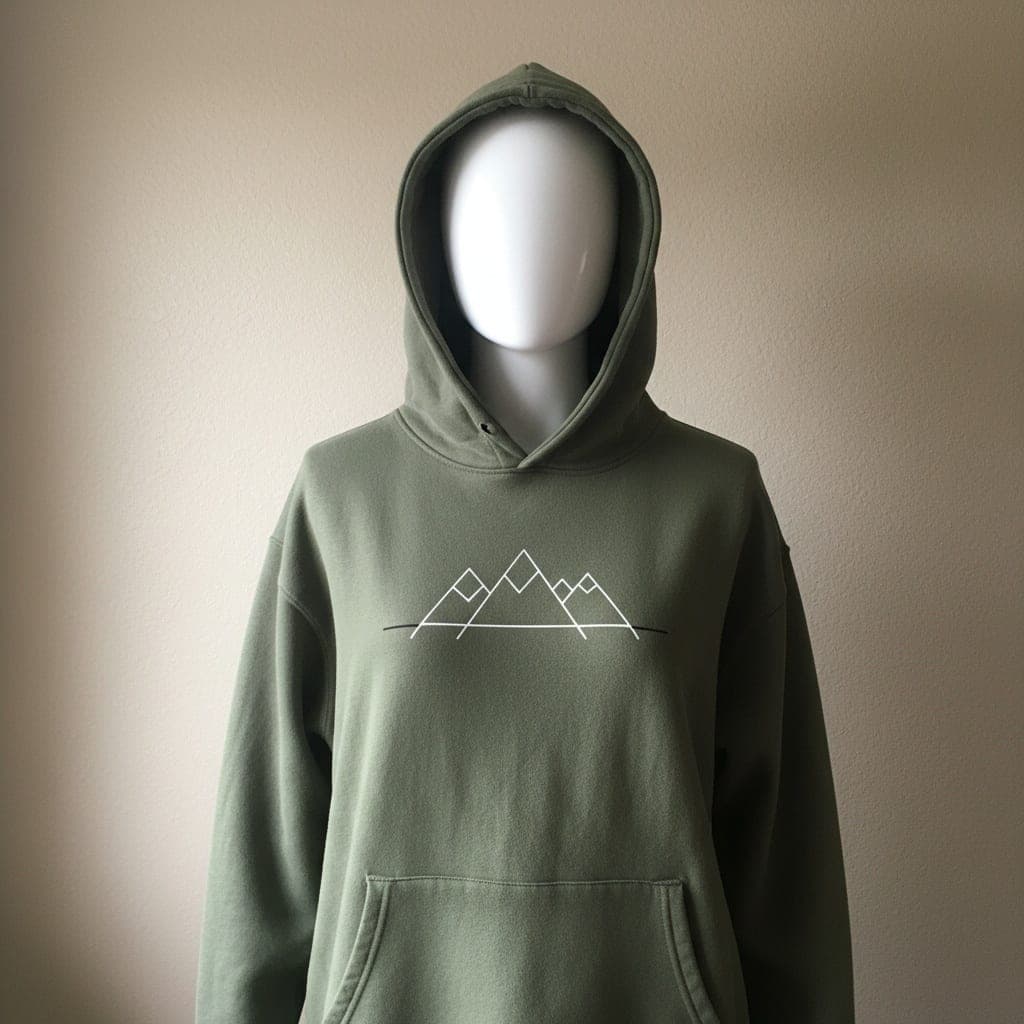 Mannequin
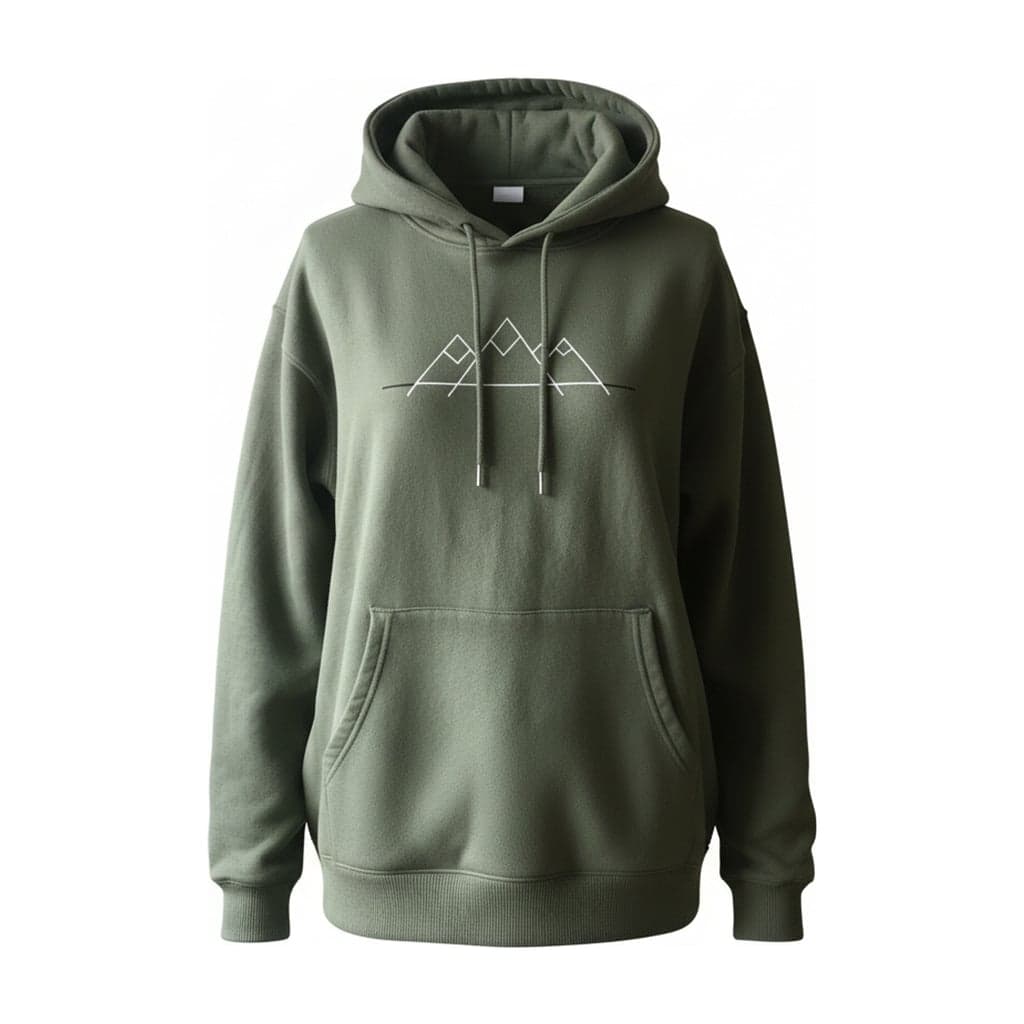 Ghost mannequin
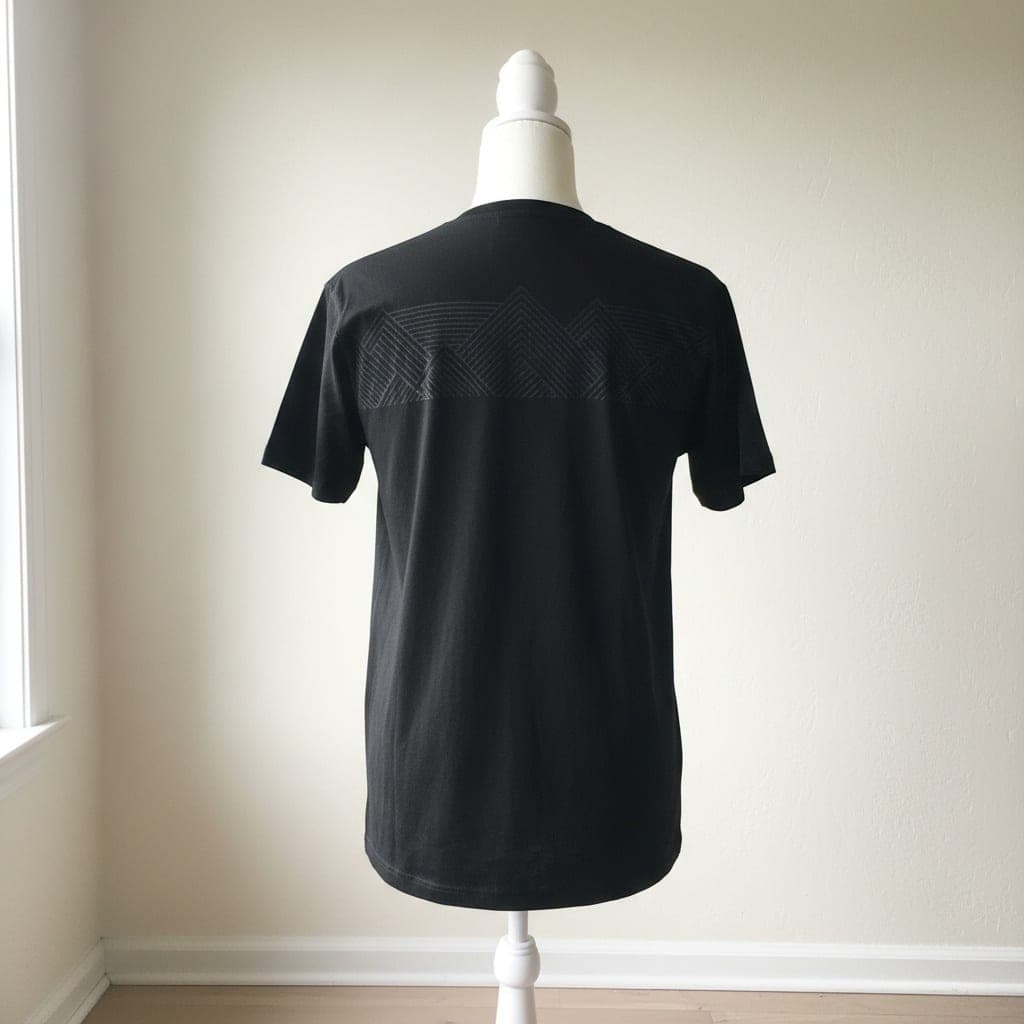 Mannequin
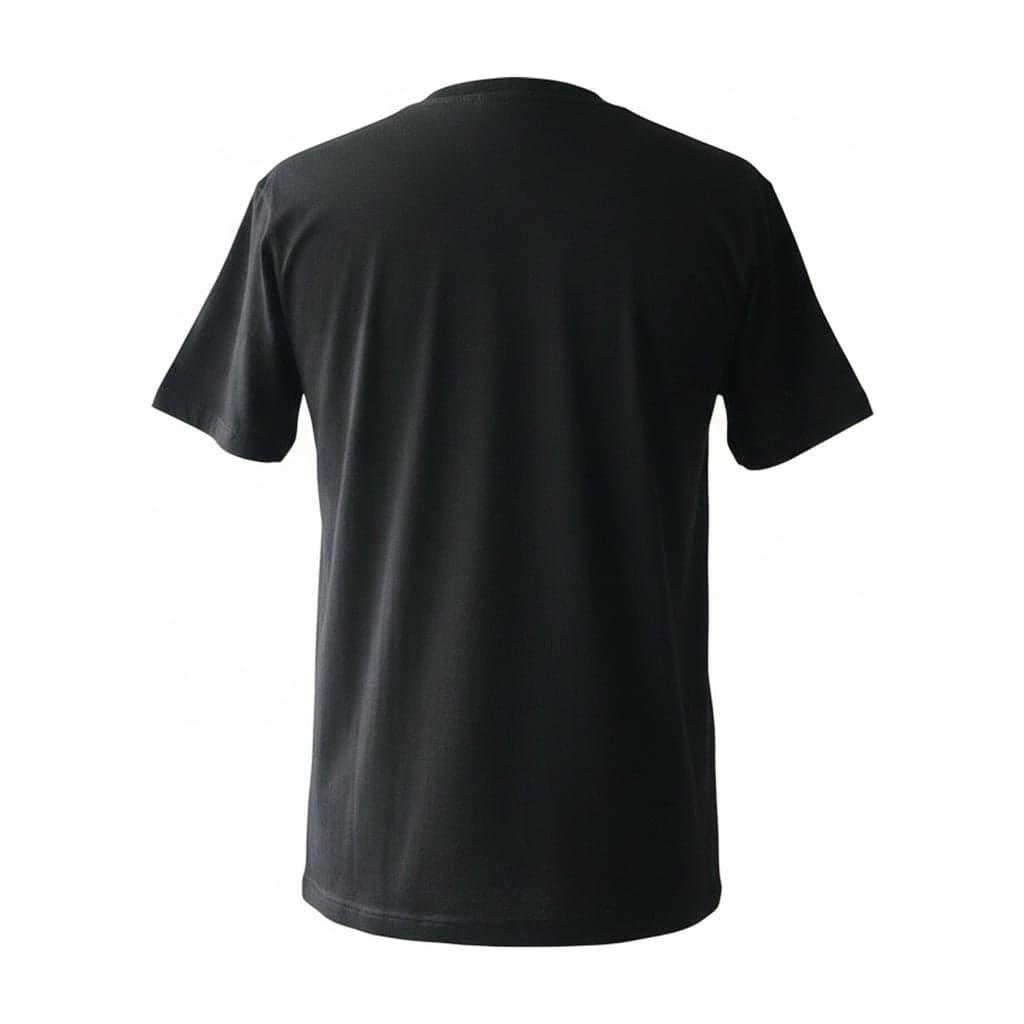 Ghost mannequin
From a Hanger Photo
Dresses and jackets shot on a hanger lose the hook and get natural, rounded shoulders instead of the hanger's sharp corners.
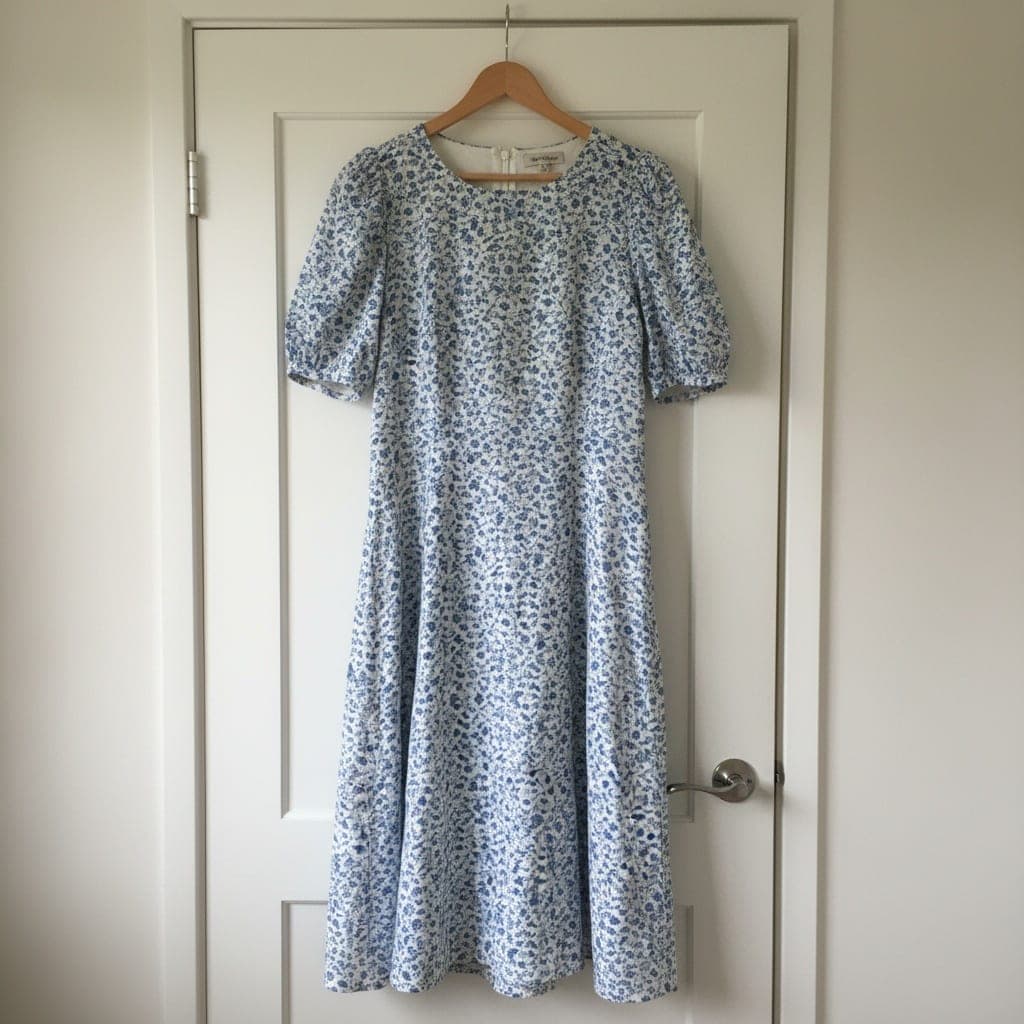 Hanger
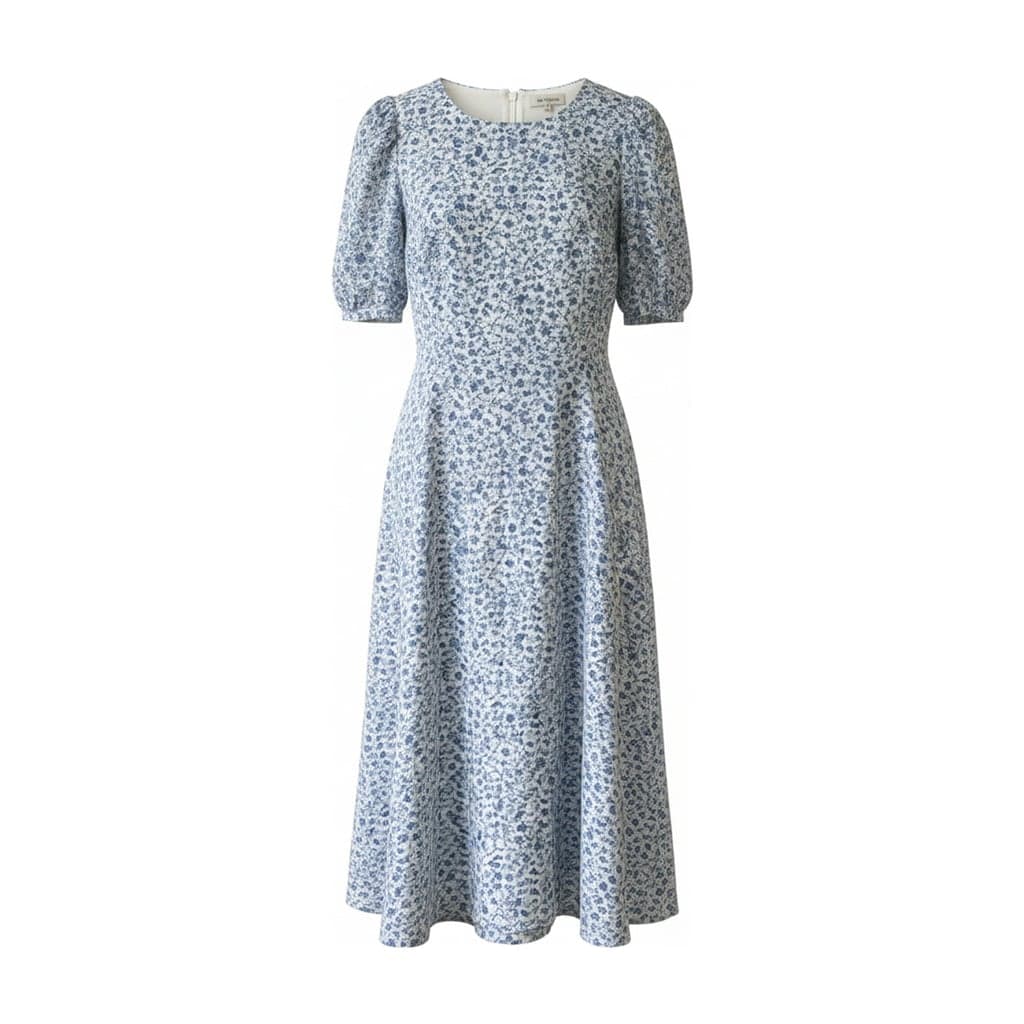 Ghost mannequin
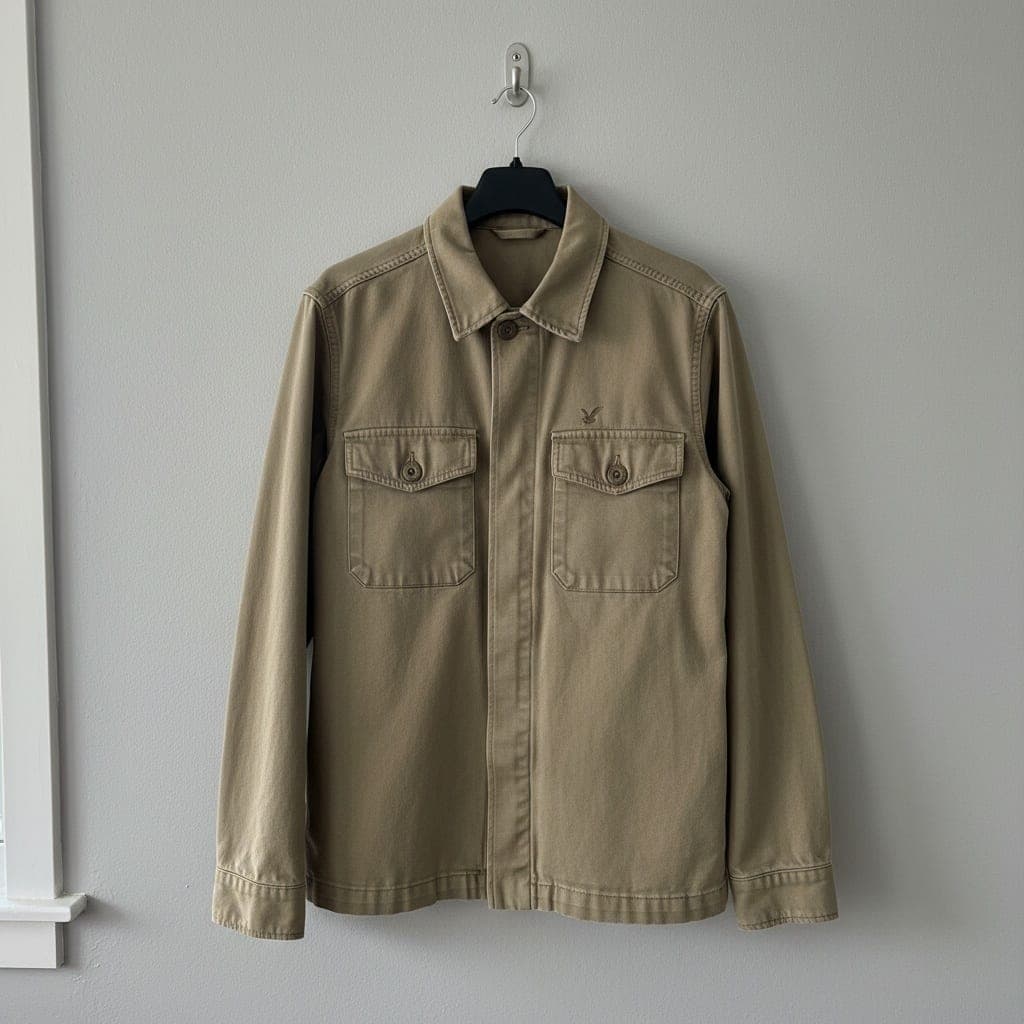 Hanger
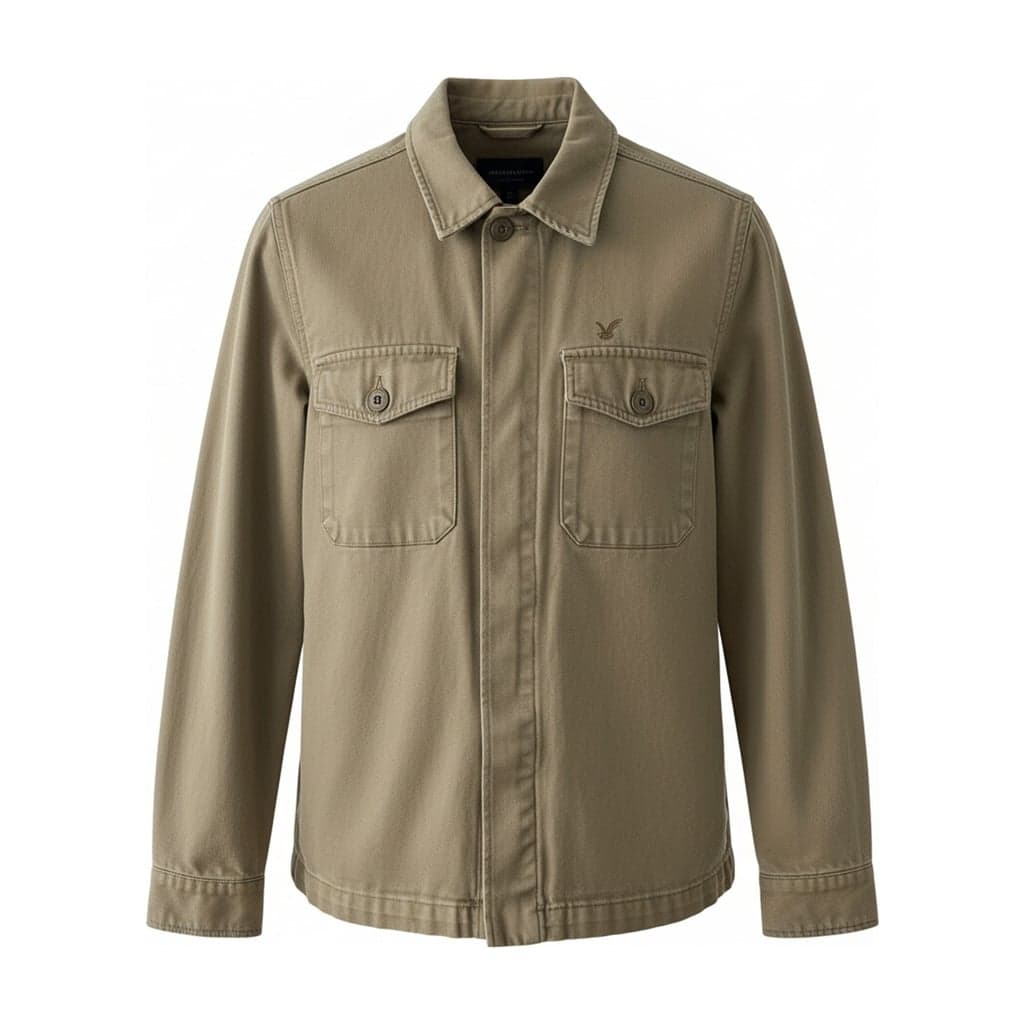 Ghost mannequin
From a Flat Lay
Flat lay to ghost mannequin: a garment photographed lying flat gets a worn, 3D shape. The print and texture stay as they are; the volume is AI-generated.
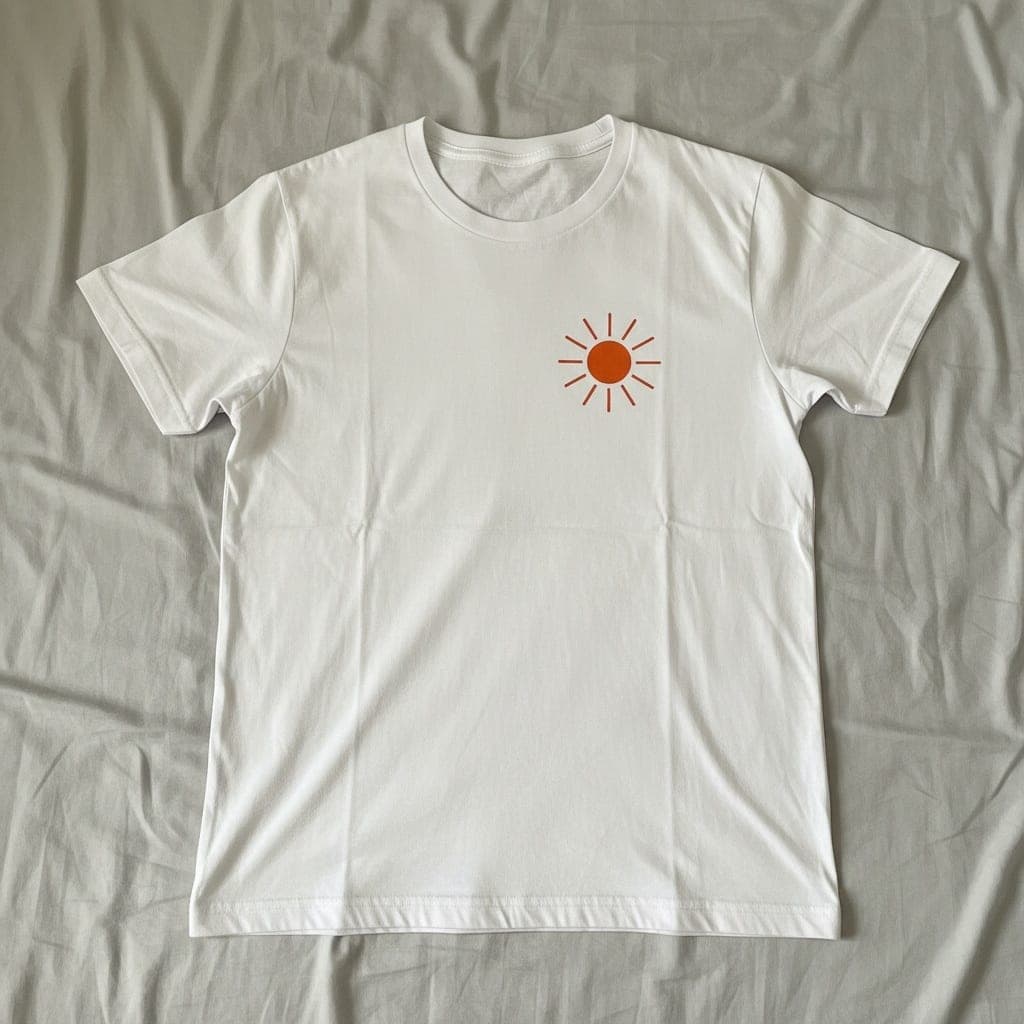 Flat lay
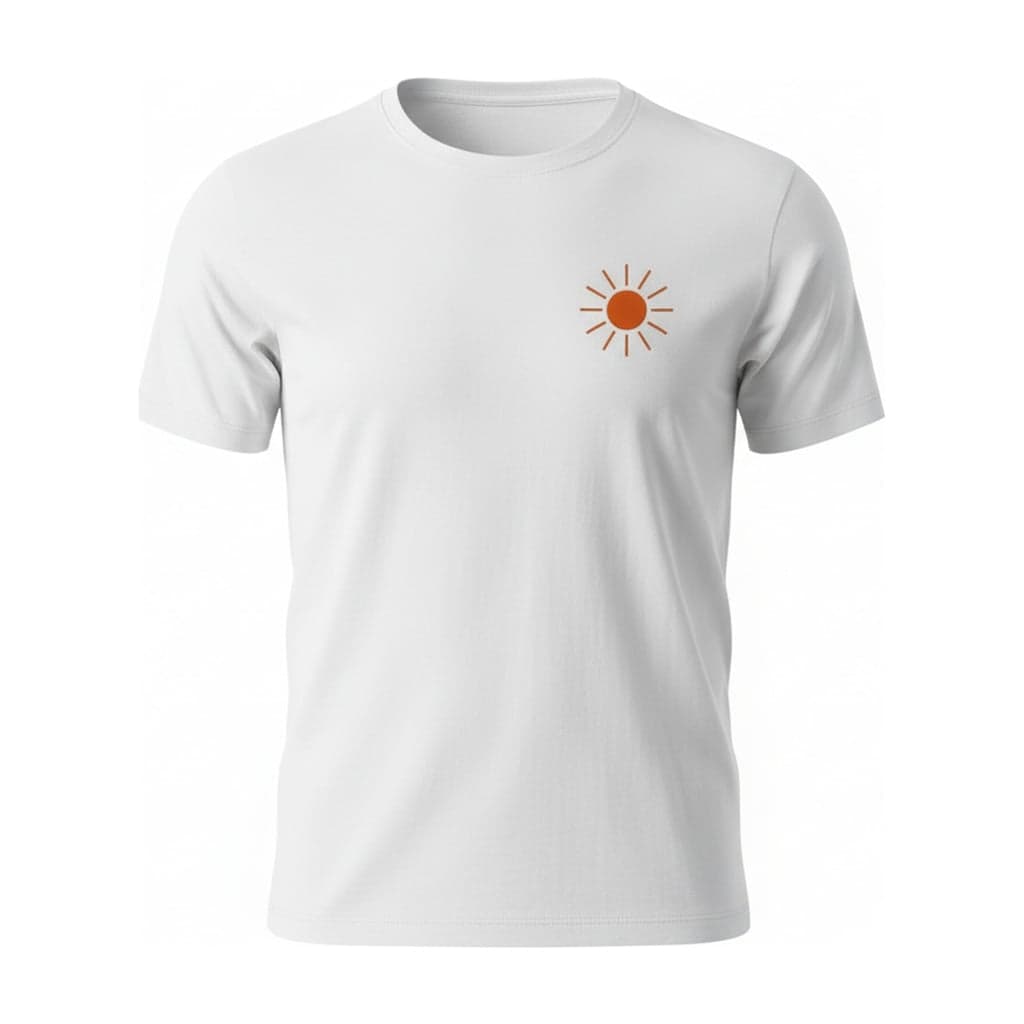 Ghost mannequin
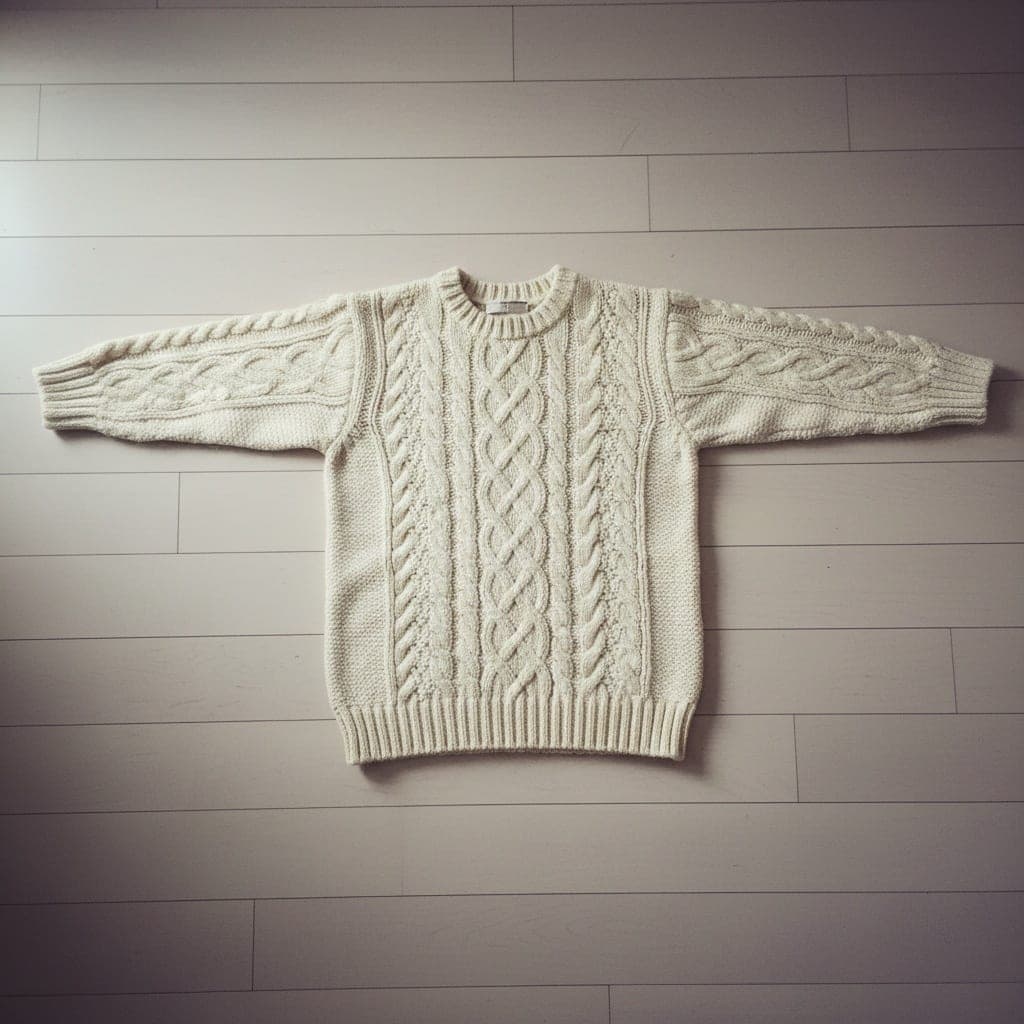 Flat lay
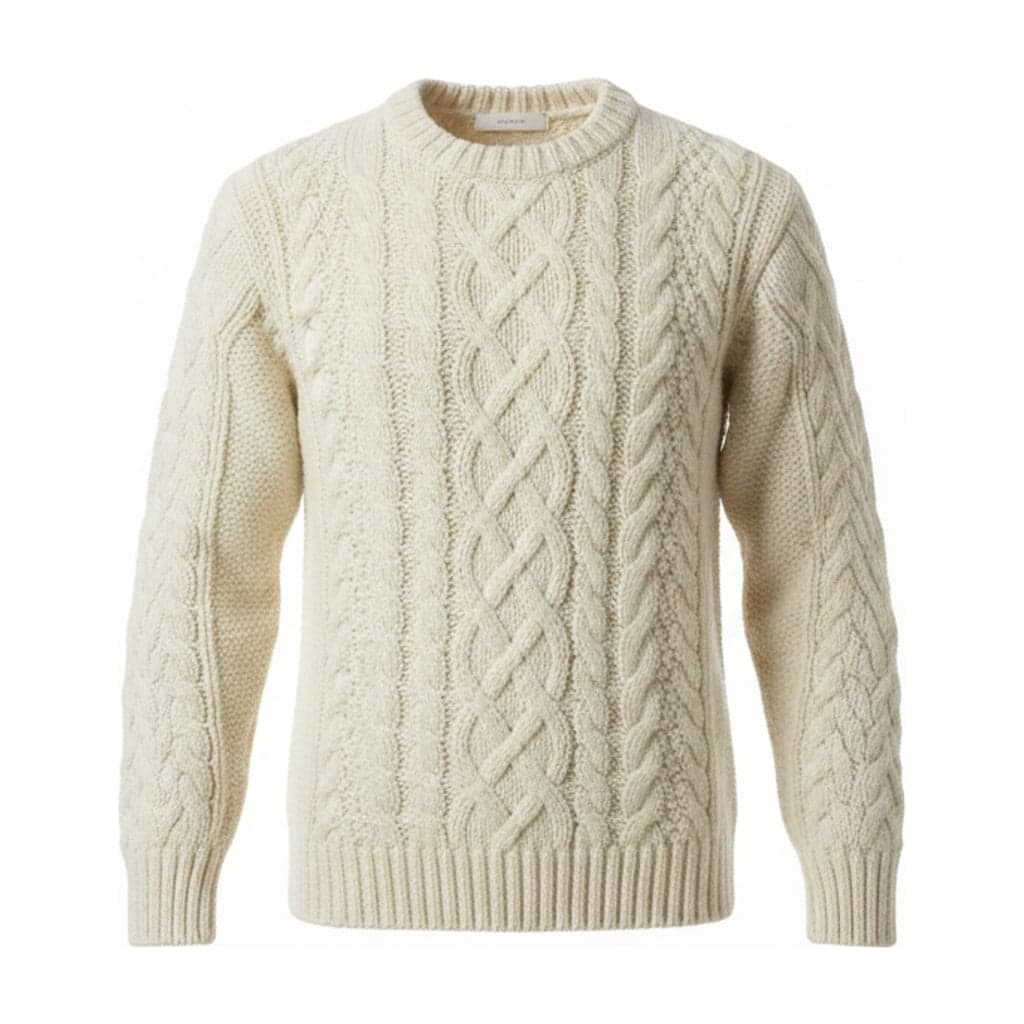 Ghost mannequin
Use cases for this tool
Ghost mannequinRemove a mannequin from a photoRemove the mannequin from a clothing photo, including the neck, arms and stand. AI fills in the inner neck so the garment looks worn by an invisible form.Ghost mannequinRemove a hanger from a photoTurn a photo of clothes on a hanger into a clean product image. AI removes the hanger and hook, rounds the shoulders and puts the garment on a plain background.Ghost mannequinWhite background clothing photosMake white background product photos of clothing from the photos you already have. Pure #FFFFFF white, consistent padding and 2048 px images for marketplaces.Ghost mannequinFlat lay to ghost mannequinTurn a flat lay photo into a 3D ghost mannequin image. AI gives the garment a worn shape and fills in the neck, keeping the print and texture from your photo.Which Photos Work Best
One garment per photo, fully in frame, evenly lit. A sharp photo at least 800 px on its shortest side gives a sharp result.
Mannequin photos
Shoot straight on, with the whole garment visible and nothing covering it. Avoid heavy shadows, cropped hems and mannequins with printed or very dark bodies.
Hanger photos
Hang the garment against a plain wall or door and shoot from the front. Avoid clip hangers that pinch the fabric and photos where the garment is twisted.
Flat lay photos
Lay the garment smooth and symmetrical and shoot from directly above. Avoid folded sleeves, wrinkles and garments piled on top of each other.
How to Make a Ghost Mannequin Photo
- 01
Upload your photo
Pick a mannequin, hanger or flat lay photo of one garment. JPG, PNG or WEBP, up to 15 MB.
- 02
Choose your settings
Tell us what the photo shows, which side of the garment it is, and pick a background, aspect ratio and padding.
- 03
Download
Compare before and after with the slider, then download a 2048 px image ready for your store.
What the AI Does and Doesn't Do
The AI removes the mannequin or hanger and fills in the neck opening and inner back, so your garment looks worn by an invisible form. It keeps the color, print, logo and shape you see in your photo.
It can't recreate what your photo doesn't show. The inside of the neck is drawn by AI and may not match your garment's real inside, and for flat lay photos the 3D shape is also AI-generated. Always compare the result with your product before you publish it.
Pricing
Each image you create uses 1 credit, and Try again uses 1 more. New accounts get free credits to try it. If an image fails, the credit goes back to your balance automatically. Credits come in one-time packs, with no subscription.
See pricingGhost Mannequin FAQ
What is a ghost mannequin photo?
It's a product photo where the garment looks worn by an invisible body: you see its 3D shape and the inside of the neck, but no mannequin or model. It's also called an invisible mannequin photo.
How is this different from invisible mannequin AI that only removes the background?
Background removal cuts the garment out but leaves the mannequin's neck and a hole where it was. This tool removes the mannequin itself and fills the neck opening with an inner back, which is the part that usually takes an editor the longest.
Can I use a photo of the garment on a real person?
The ghost mannequin tool is built for mannequin, hanger and flat lay photos. Photos of garments on people give less reliable results here, so we don't recommend them.
Will it change my garment's color or print?
It's told to keep the color, print, logo, text and stitching exactly as they are, and in most results it does. AI can still get small details wrong, so always check the result against your product before you publish it.
Can I make a back view?
Yes. Choose Back under "Which side of the garment?". Back views don't get an inner neck, because you wouldn't see one from behind.
What size are the downloaded images?
The short edge is 2048 px: 1:1 downloads at 2048 × 2048, 4:5 at 2048 × 2560 and 3:4 at 2048 × 2731. White and light gray backgrounds download as JPG; transparent backgrounds download as PNG.
Who can see my photos?
Only you. Your uploads and results are stored privately, previews use links that expire after a few minutes, and downloads check that you're signed in to the account that made the image.