
AI Flat Lay Clothing Generator
Turn hanger, mannequin or model photos into flat lay clothing images with AI. Upload one garment, choose the matching input type and get a top-down presentation. Check each result against the garment before listing it.
Flat Lay Examples
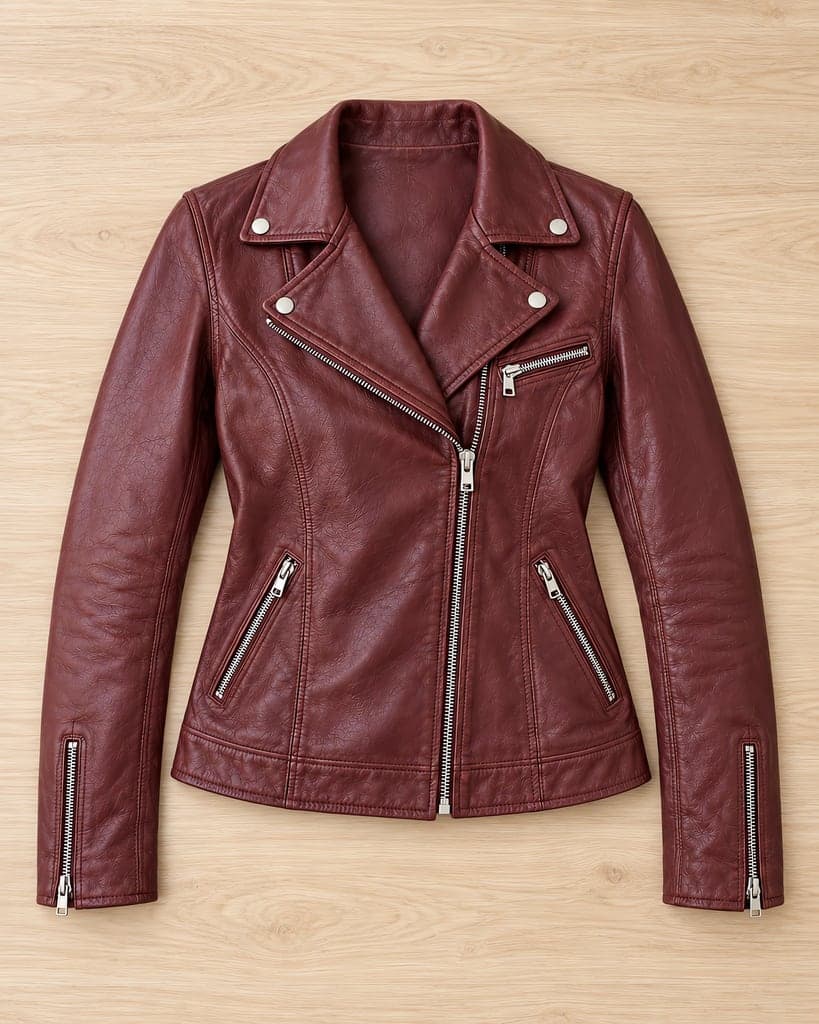
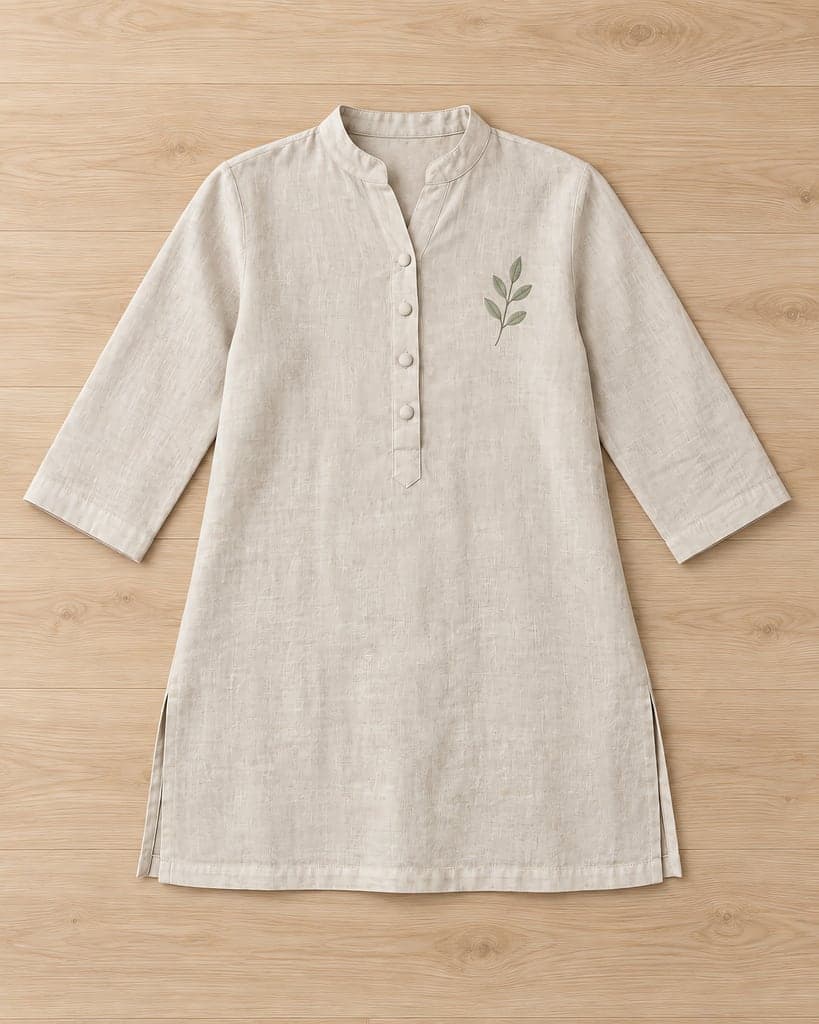
Standard · 2 credits per generation
2K source for finer fabric and print detail. Check each result against your garment.
Download: 2048 px on the short edge.
- Photo
- Settings
- Result
Works best
- One garment, fully in frame
- Straight-on, evenly lit
- Plain background
Avoid
- Cropped hems or sleeves
- Busy backgrounds or several garments
Next generation settings
Framing reference only. These settings apply to the next generation and do not edit the current result.
Output: 2048 × 2048 px · JPG
Sign in with email or Google. New accounts can try 1 Standard image (2 trial credits). Watermarked preview; unlock this already-generated image for $0.50 via PayPal. Trial credits are granted after email verification; Google sign-in counts as verified.
Uses 2 credits per image. A failed image gives the credit back.
- Private storage: your photos are not publicly displayed
- Failed images give the credit back
- 2048 px downloads in 1:1, 4:5 or 3:4
- Packs from $2.99 · no subscription
For sellers who need top-down clothing images without setting up an overhead shoot, start with a clear mannequin, hanger or worn photo. The flat lay tool generates a laid-out garment presentation with background and spacing controls. Compare seams, proportions and labels with the original; generated fabric details may change.
Flat Lay Examples
Compare the original photo and result, including the neckline, print and fabric.
Turn mannequin photos into flat lay clothing images
Mannequin photos become complete overhead flat lays. Compare the colour, print and small parts against the original.
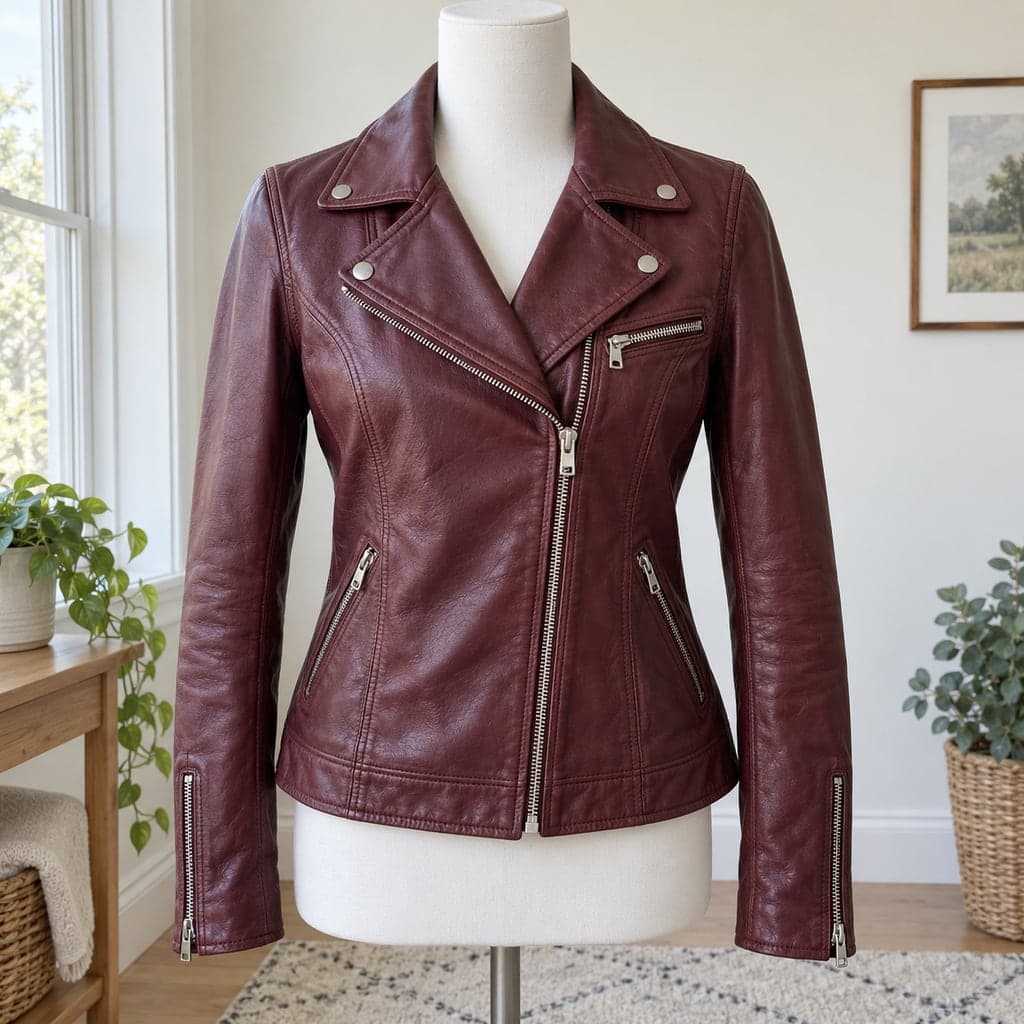 MannequinFlat lay
Turn hanger photos into flat lay clothing images
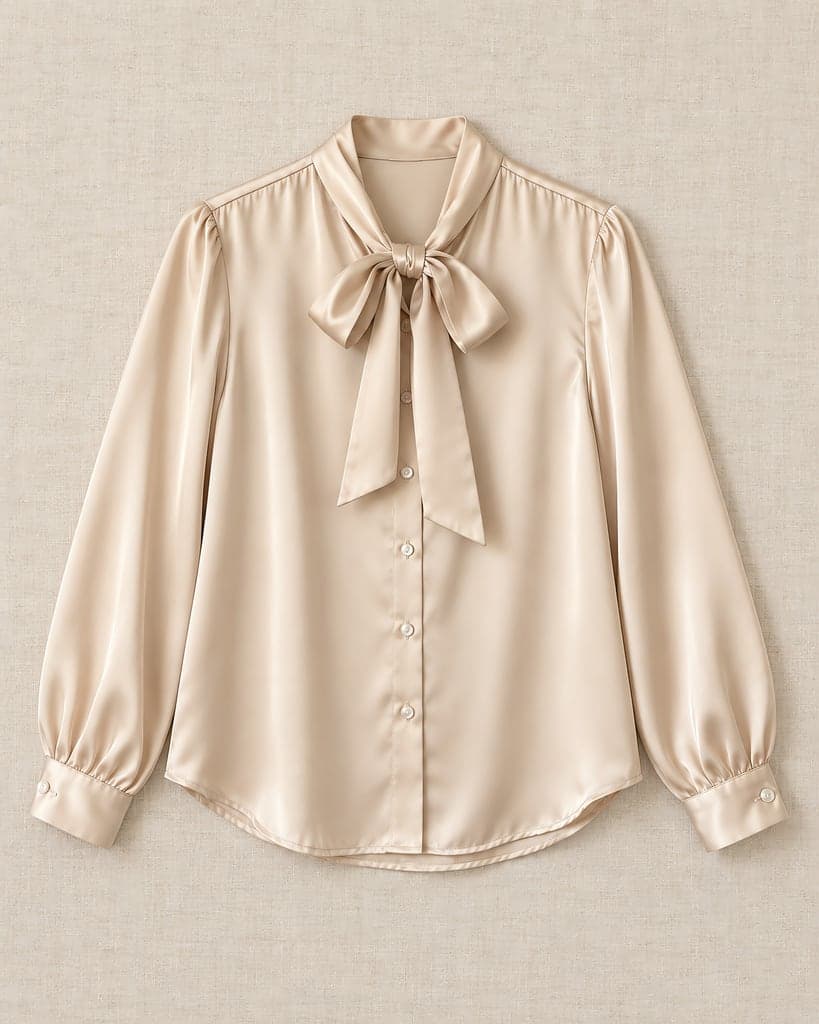
This existing example shows a silk blouse converted from a hanger photo to a top-down flat lay on linen. Choose Hanger in the tool above to use this workflow. Compare the bow, buttons, lustre and curved hem with the original; AI may change these details.
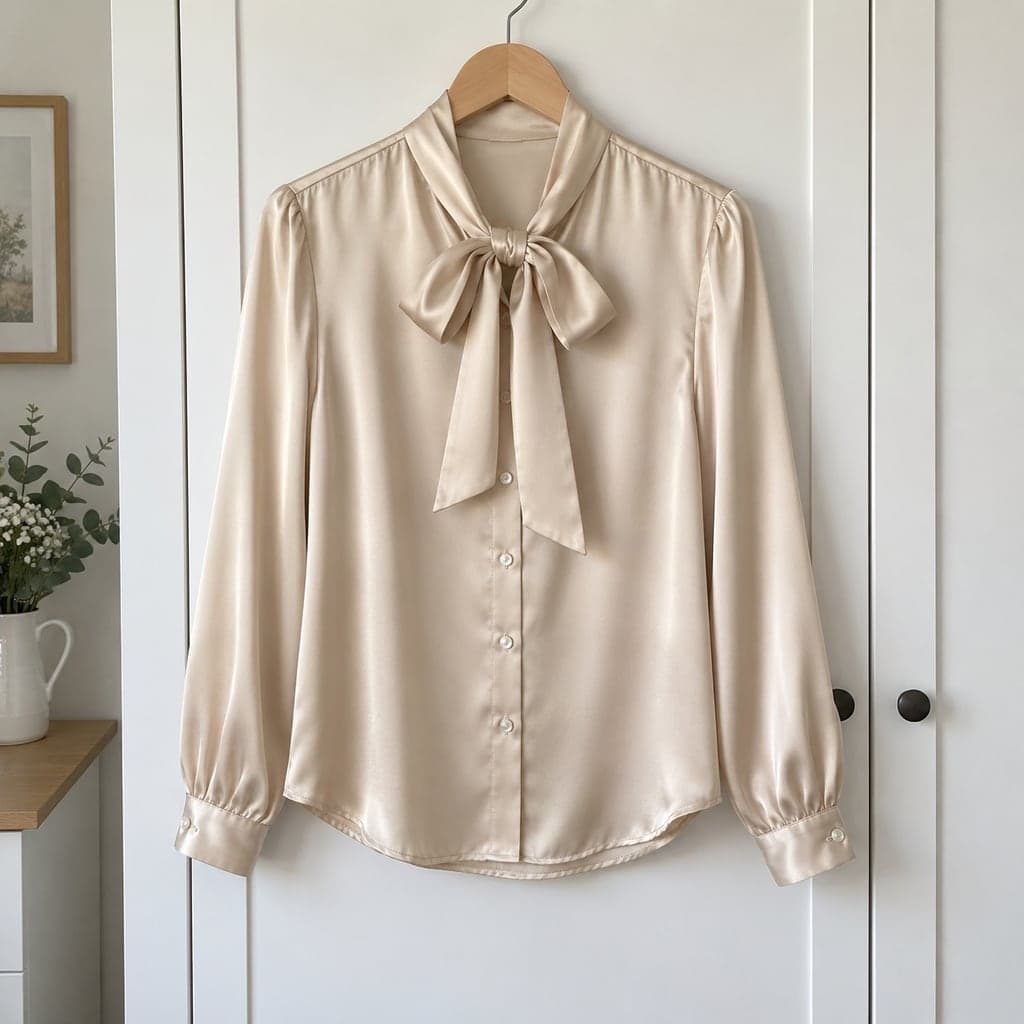 HangerFlat lay
Turn model photos into flat lay clothing images
These examples start with a person wearing the garment and show the garment laid flat. Choose Worn in the tool above. Check sleeves, neckline and any area hidden by the pose; the output is reconstructed, not a measurement of fit.
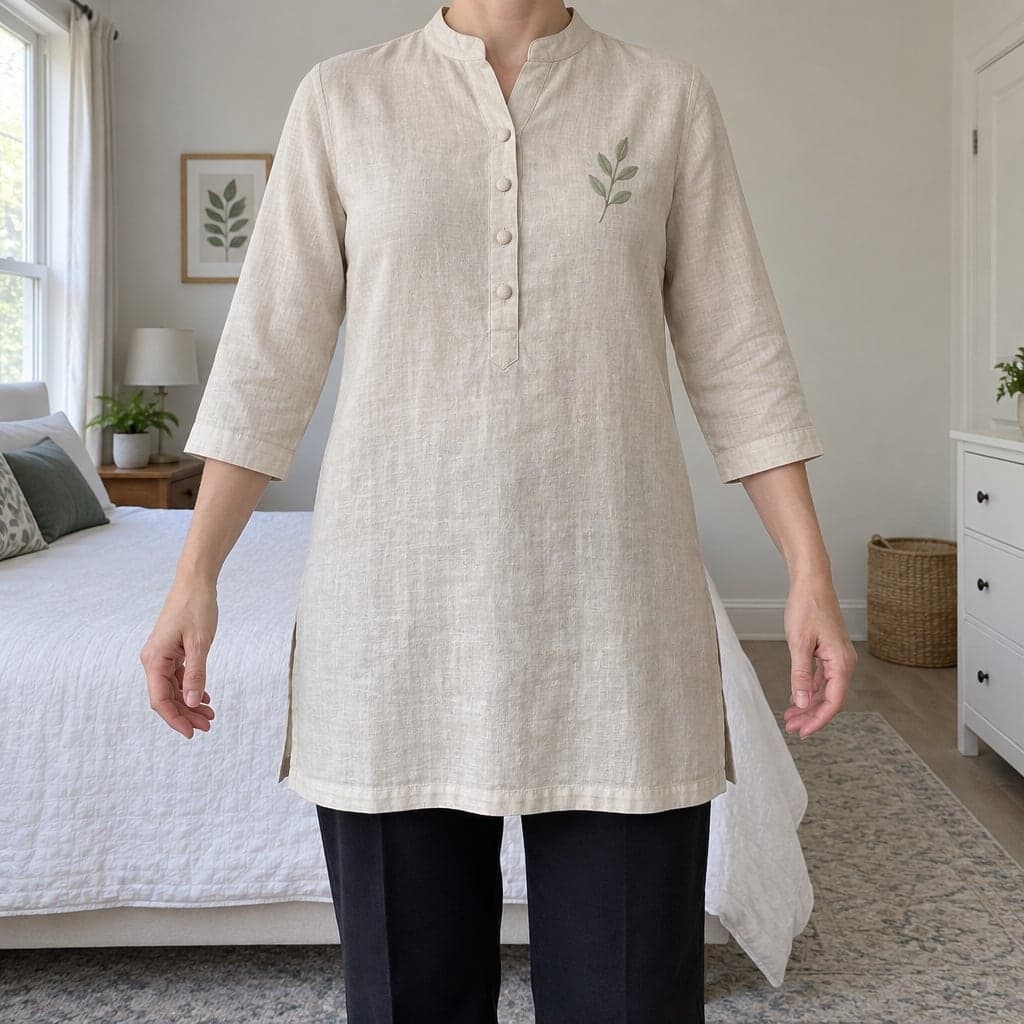 WornFlat lay
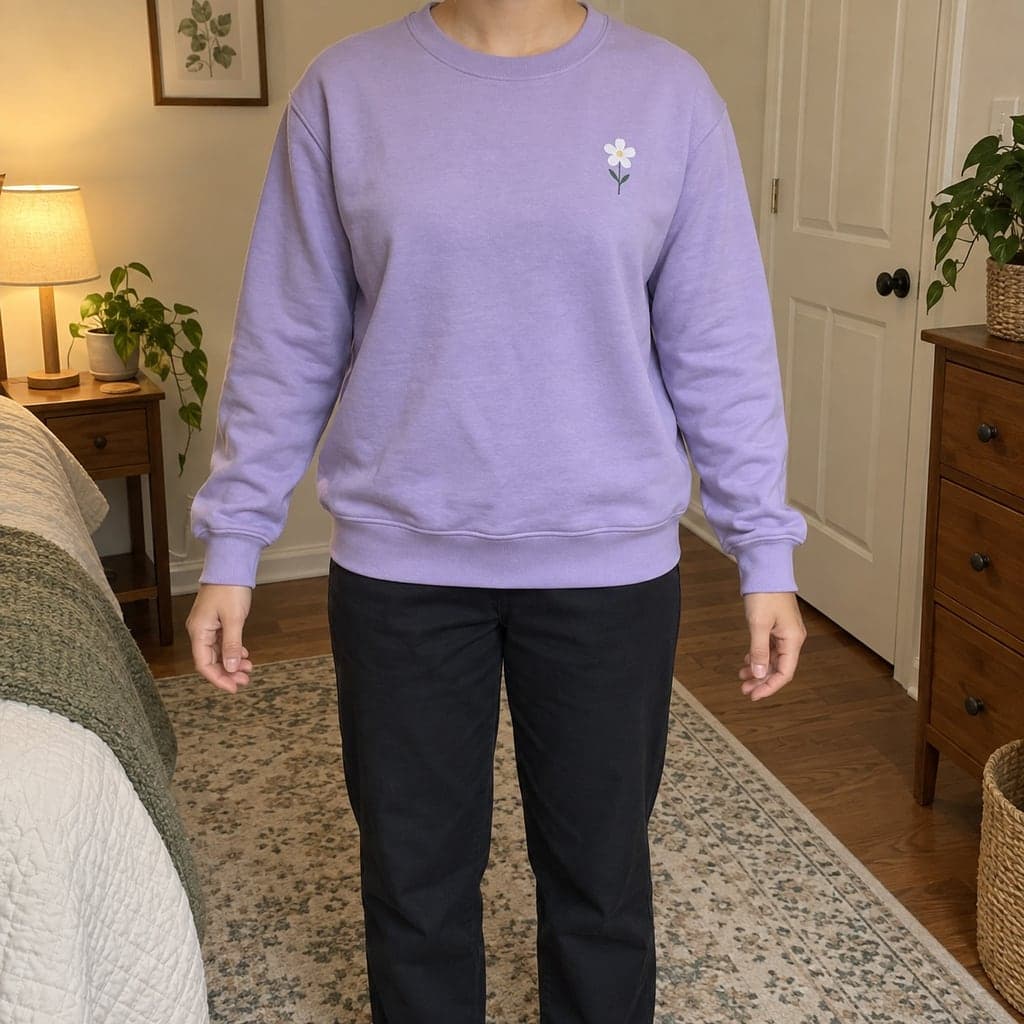 Worn
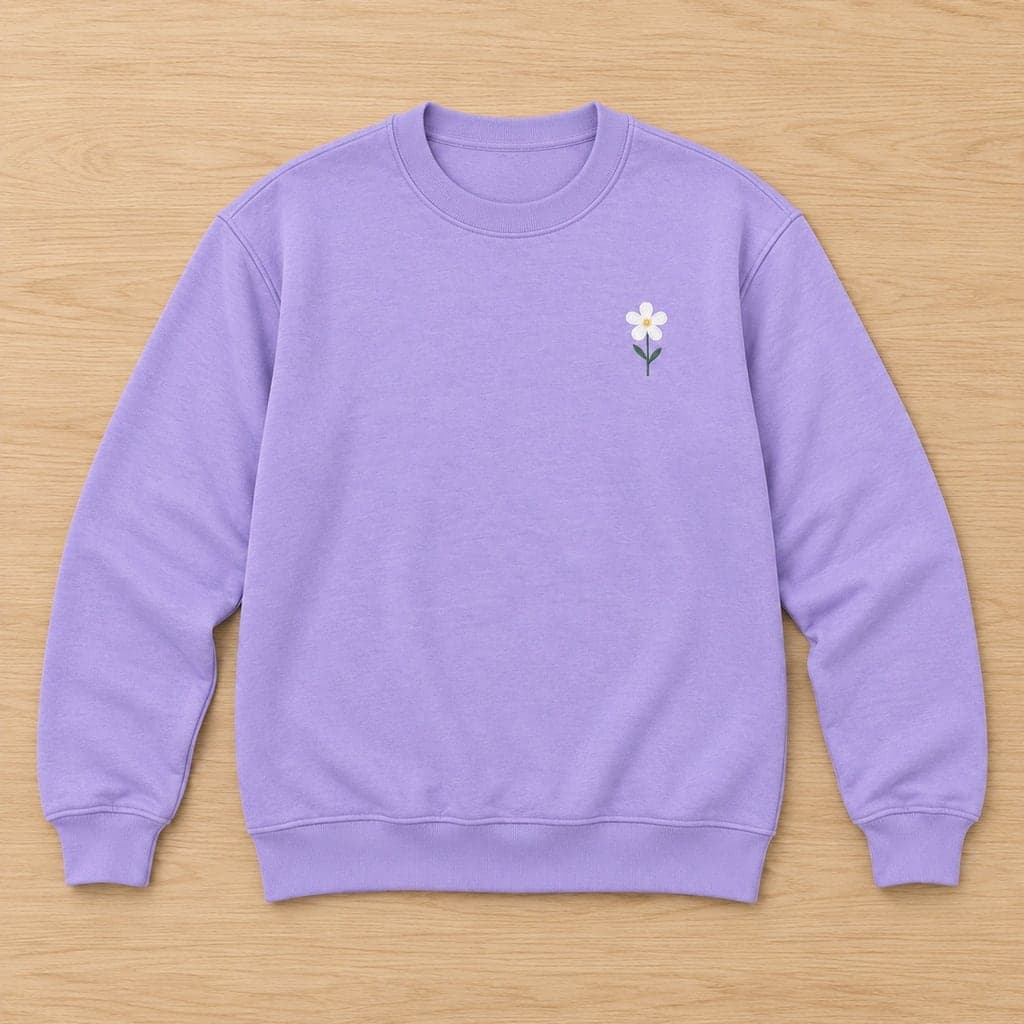 Flat lay
Have a similar clothing photo?
Try your own garment. One clear main photo is enough to start; extra reference photos are optional.
Which Photos Work Best
One garment per photo, fully in frame, evenly lit. A sharp photo at least 800 px on its shortest side gives a sharp result.
Mannequin photos
Shoot straight on with the whole garment visible, including the hem and both sleeves.
Hanger photos
Hang the garment against a plain background and shoot from the front, with nothing covering it. To make a top-down image, choose Hanger in this flat lay tool.
Worn photos
A front view with the whole garment visible works best. Avoid crossed arms, bags or hair covering the garment, and side or back poses.
When to add extra photos
If your garment has a neck label you want to retain, photograph the inside of the collar clearly and add it as the optional neck-label photo. A label visible in the main photo is also used as a reference. Small lettering may not survive the edit.
An optional photo from another angle helps the AI understand seams, fabric and the garment’s shape. Use the same garment in similar lighting; it is a reference, not a second product to generate.
How to Make a Flat Lay Photo
- 01
Upload your photo
Pick a mannequin, hanger or worn photo of one garment. JPG, PNG or WEBP, up to 15 MB.
- 02
Optional: add a collar or another-angle photo
Add up to two reference photos of the same garment: the inside of the collar and another angle. These do not cost extra credits. For supplementary photos, use single-item processing.
- 03
Choose your settings
Tell us what the photo shows, then pick a background, aspect ratio, padding and whether you want a soft shadow.
- 04
Download
Compare before and after with the slider, check the details, then download a 2048 px image.
What the AI Changes and What It Keeps
The AI lays your garment flat and photographs it from above. It is told to keep the color, print, logo and details you see in your photo.
Laying a garment flat means redrawing parts your photo doesn't show, like the back of the sleeves and how the fabric falls. Those parts are AI-generated, so always compare the result with your product before you publish it.
A visible neck label or an optional collar-interior photo gives the AI a reference for the real label, but small lettering may change or disappear. The output is enlarged to a 2048 px short edge; start with a sharp, evenly lit photo.
Check Before You Publish
Put the result next to your garment or your original photo and look at these six things.
Color
Compare the shade in the same light. Navy, black and pastels shift most easily.
Print and text
Logos, lettering and repeated prints should match your garment. Small text is the most likely to change.
Neck label
Small lettering on a neck label may not be preserved. Compare the real label with the result and include a close-up in your listing when it matters.
Length and sleeves
Laying flat redraws the garment. Check the length, sleeve length and cuffs against the real piece.
Buttons and pockets
Count the buttons, and check that pockets, zips and seams are where they should be.
Hidden parts
Parts your photo doesn't show, like the back of the sleeves, are drawn by AI. Check them against the garment.
Pricing
Sign in with email or Google. New accounts can try 1 Standard image with 2 trial credits and inspect a watermarked preview. Unlock that existing image for $0.50, or buy a one-time credit pack for more generations and an unlocked trial image. The $0.50 unlock adds no generation credits; neither option starts a subscription. Standard uses 2 credits per generation, including each retry. Failed generations return the full charge automatically.
Batch processing supports up to 10 photos, charges credits per generation and refunds the credits for each failed image. Use single-item processing when you need supplementary photos.
See pricingFlat Lay FAQ
What is a flat lay product photo?
It's a photo of a garment laid flat and shot from directly above. It shows the whole shape of the garment at once and is common on marketplaces and social shops.
Can I use a photo of someone wearing the garment?
Yes. Choose Worn. The person is removed and only the garment is kept. A front view with the whole garment visible works best, and results vary more than with mannequin or hanger photos.
Why is there no transparent background?
A flat lay's soft shadow and surface are part of what makes it look real, so the tool gives you white, light gray, light wood or linen instead.
Can I turn the shadow off?
Yes. Untick "Soft shadow under the garment" before you create the image.
Will the print or logo change?
The AI is told to keep the color, print, logo and text as they are. Parts your photo doesn't show are AI-generated, so check the result against your product before you publish it. Check changed garment details
Can I keep the real neck label, and do extra photos cost more?
Standard uses 2 credits per generation, including retries. See how to use an inside-collar reference
Where can I compare this workflow with Photoroom?
Our guide compares Photoroom’s official documentation with this tool’s inputs, batch processing, credit packs and garment-detail checks. Read the Photoroom comparison.
What can I try before buying?
Sign in with email or Google. New accounts can generate 1 Standard trial image and inspect its watermarked preview before deciding to buy.
Why does my trial preview have a watermark?
The trial lets you inspect the generated result. A single-image purchase unlocks that image without a watermark; a credit pack unlocks your trial image and adds more generations.
Can I download my original trial image after paying?
Standard uses 2 credits per generation, including retries. See billing answers
What is the difference between one image and a pack?
A single-image purchase unlocks one existing image and adds no generation credits. Packs provide 10, 40, 150, 450 or 1,200 Standard generations and unlock your existing trial image.
Do these purchases renew automatically?
No. Single-image unlocks and the credit packs shown here are one-time purchases. They do not start a subscription or renew automatically. Read about credit expiry and renewals
What happens if generation fails?
Credits for failed generations are returned automatically. If a completed image has changed important garment details, compare it with the original before publishing and contact support for help. Read about failed generations
What size are the downloaded images?
The short edge is 2048 px: 1:1 downloads at 2048 × 2048, 4:5 at 2048 × 2560 and 3:4 at 2048 × 2731. Flat lays download as JPG. See output dimensions
Who can see my photos?
Only you. Uploads and results are stored privately, previews use links that expire after a few minutes, and downloads check that you're signed in to the account that made the image.
How does batch processing use credits?
Standard uses 2 credits per generation, including retries. See batch upload guidance
Start with your task
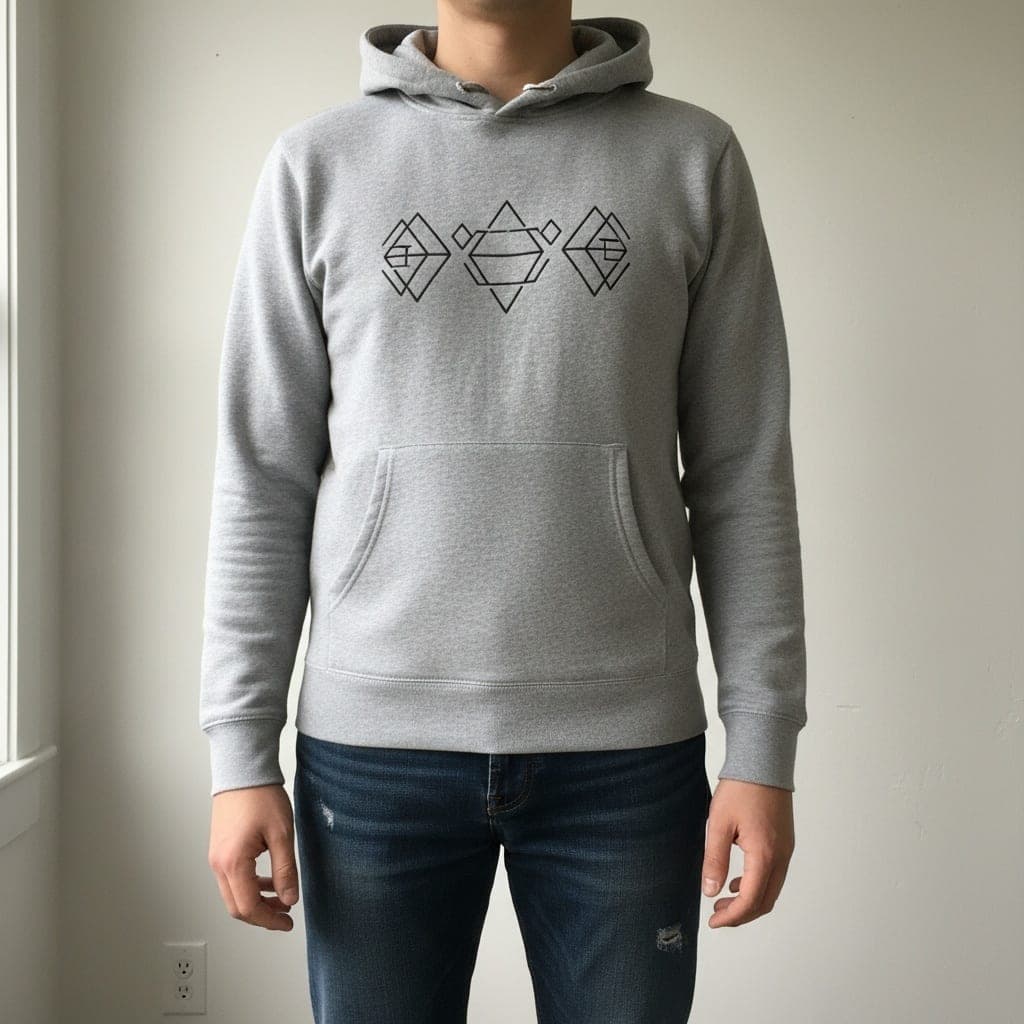
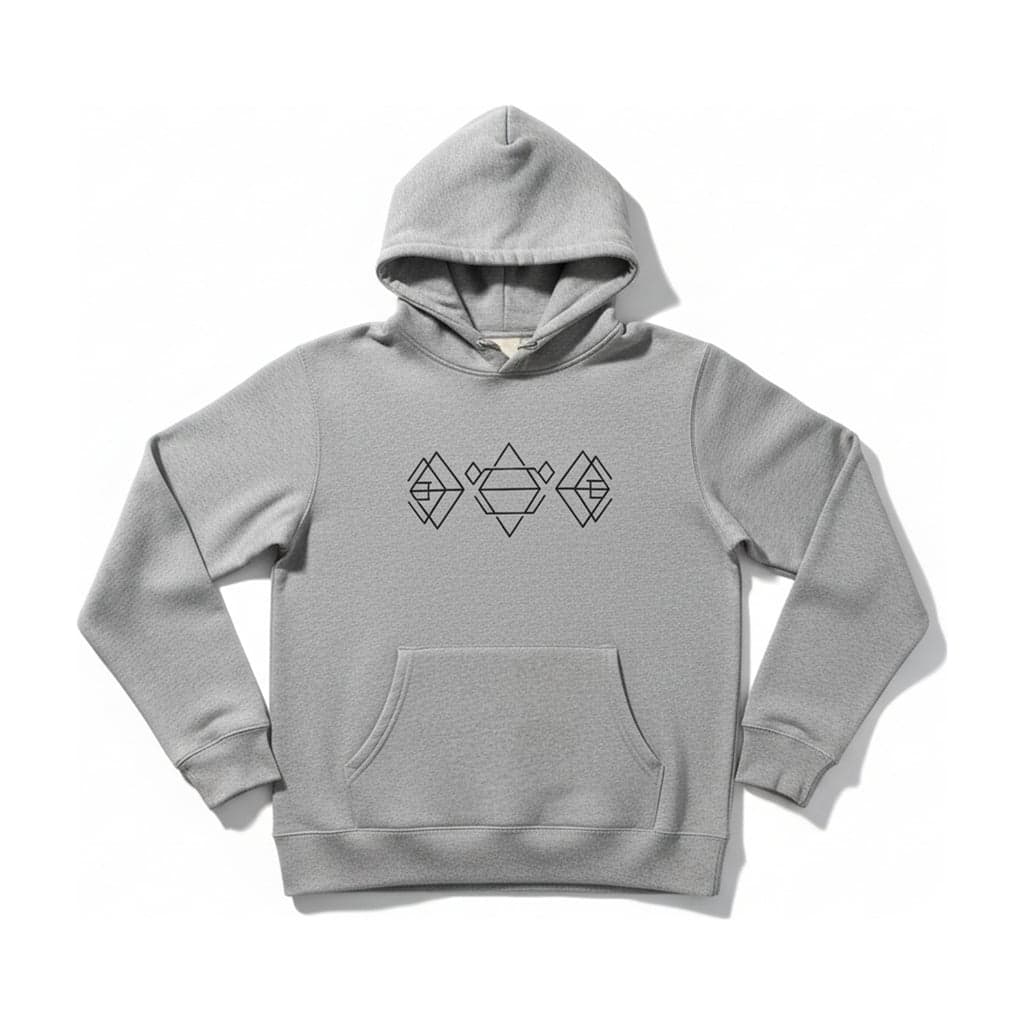 Flat layRemove a person from a clothing photoTurn a photo of someone wearing a garment into a clean flat lay product image. AI removes the person, keeps the garment and lays it flat on a plain background.
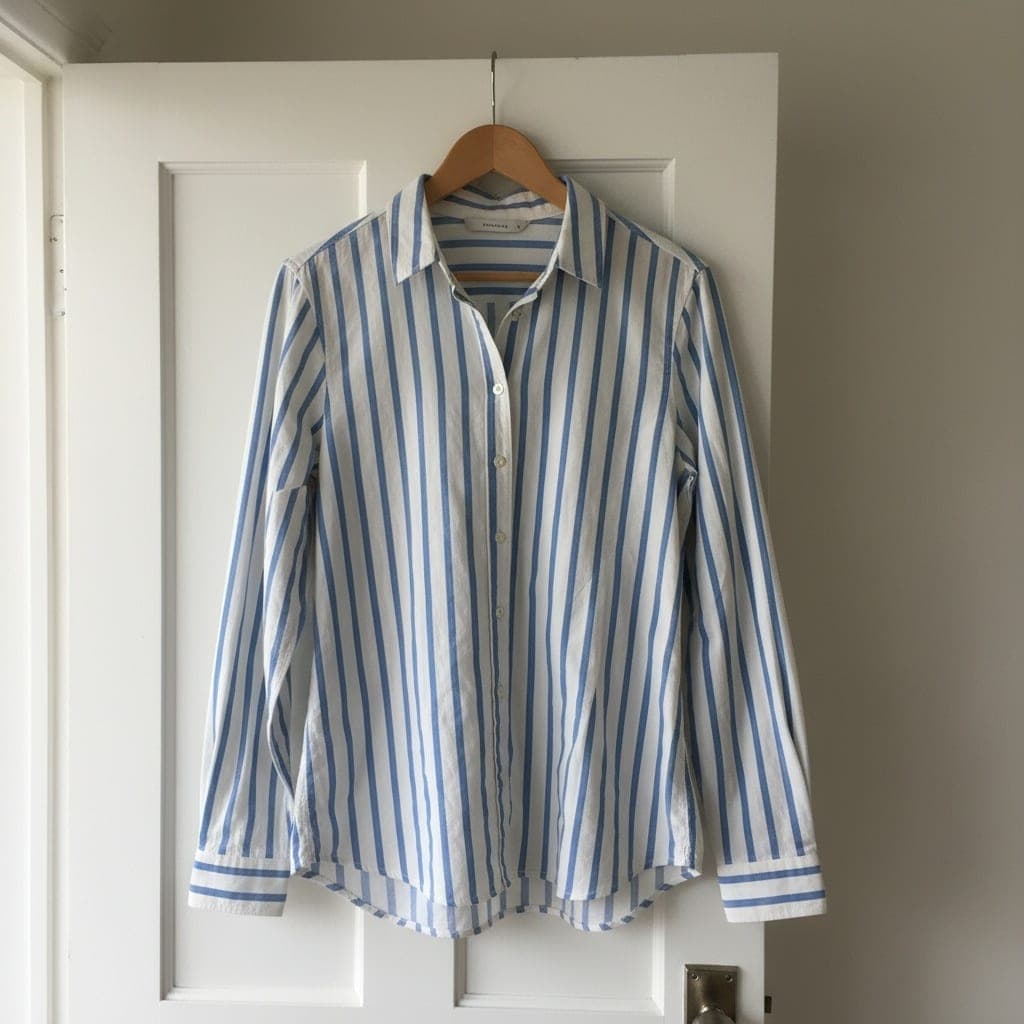
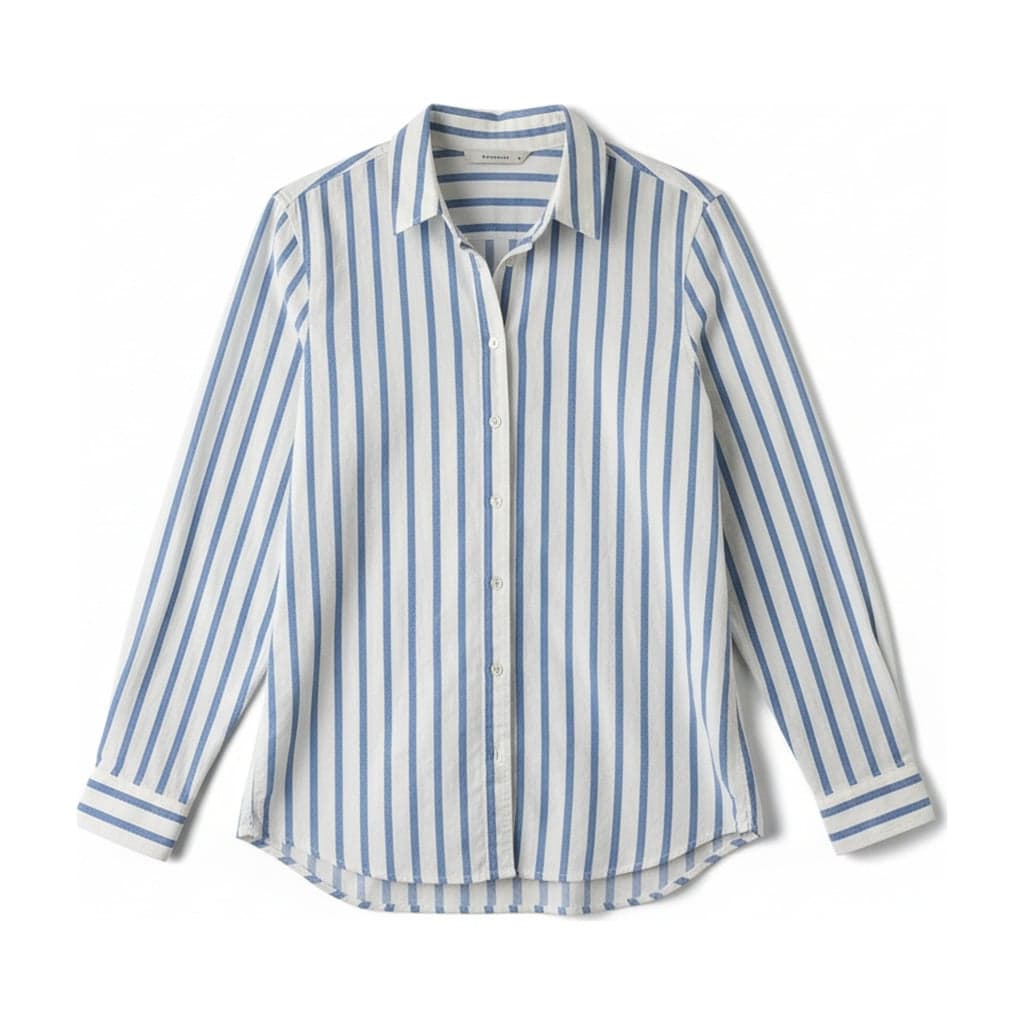 Flat layEtsy clothing photosMake consistent Etsy clothing photos from hanger or mannequin shots: flat lays on light wood, linen or white, 2048 px on the short edge, square or portrait.